How to Reduce a Video's File Size
Phones record beautiful video, and it takes up a lot of space. A short clip can easily run to hundreds of megabytes, which is too big for an email attachment and slow to send over a mobile connection. Many forms and apps also limit the size of uploads.
Fortunately, you control the size through a few settings, and once you understand them, you can predict what you will get. This guide explains what really determines a video's size, gives you a simple formula, and suggests settings for common situations.
Try it now:Video Converter →
Three settings decide the size
Resolution is the number of pixels in each frame, such as 1080p or 720p. Fewer pixels means less to store. This is usually the single most effective setting, as 720p has less than half the pixels of 1080p, and on a phone screen it can look almost the same.
Bitrate is how much data is used per second of video, usually in megabits per second (Mbps). It is the setting that most directly controls file size. Lower it too far, however, and you will see blocks and smears, especially in fast movement.
Frame rate is the number of pictures per second, typically 24, 30 or 60. Dropping from 60 to 30 can save space on video of fast action, and most ordinary footage looks fine at 30. Choosing a higher value than the original adds nothing, as new detail cannot be created.
A simple formula for estimating size
File size is close to bitrate multiplied by duration. Because bitrate is measured in bits and file size in bytes, you divide by 8. Add the audio bitrate too, which is usually small by comparison. So for a one-minute clip with 2 Mbps of video and 128 kbps of audio, the total is about 2.13 Mbps. Multiplied by 60 seconds and divided by 8, that comes to roughly 16 MB.
This also works backwards, and that is the useful part. If a video has to fit under 25 MB and lasts 2 minutes, you have 200 megabits to spend over 120 seconds, or about 1.6 Mbps in all. Leave some room for audio, and aim for around 1.4 Mbps of video.
Under 10 MB
Under 16 MB
Under 25 MB
Under 50 MB
about 1.2 Mbps
about 2 Mbps
about 3.2 Mbps
about 6.5 Mbps
Reduce a video in three steps
Video Converter lets you change these settings along with the format. Long files take a while, as every frame has to be processed on our server.
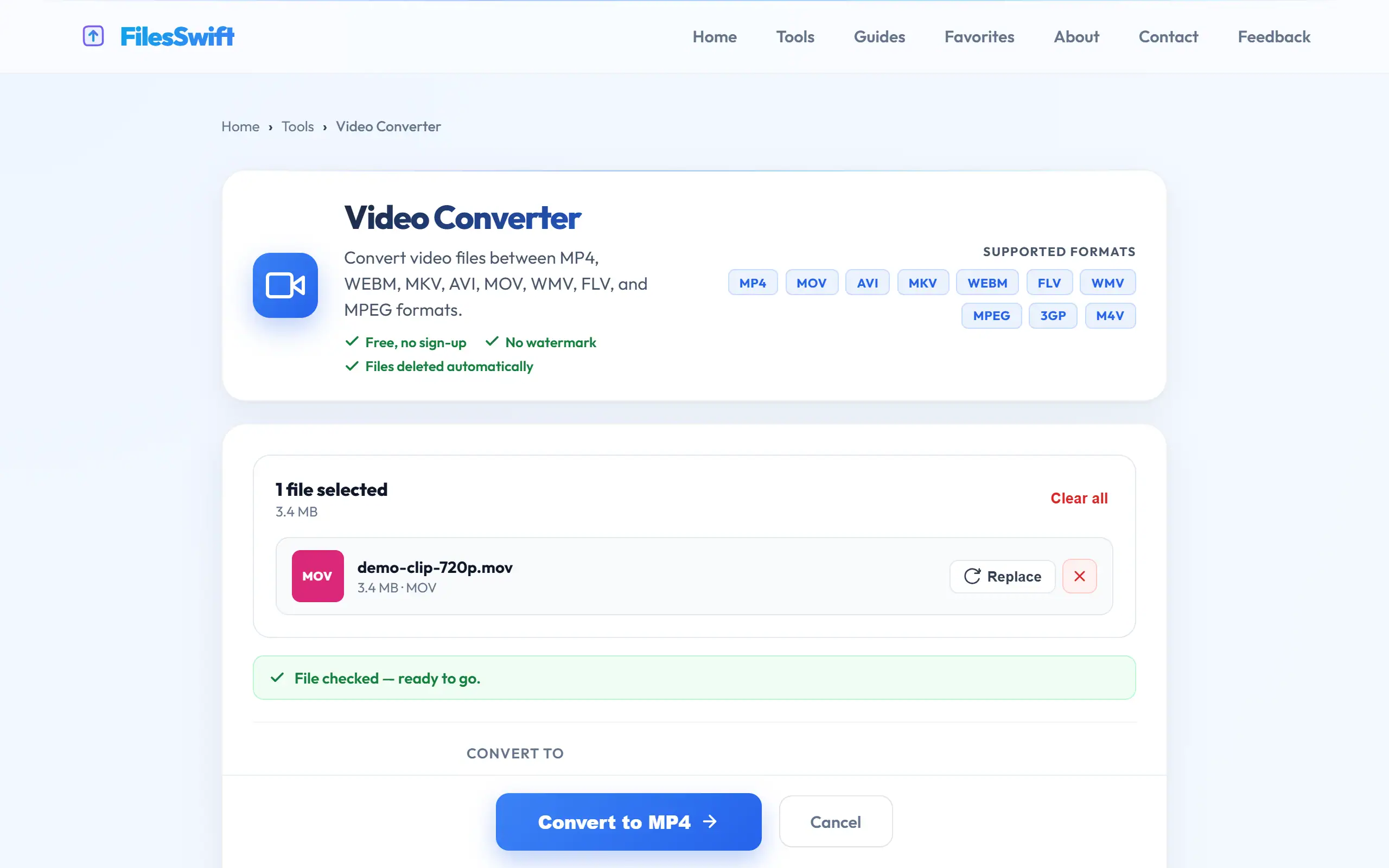
- Open Video Converter, upload your video and choose MP4 as the output.
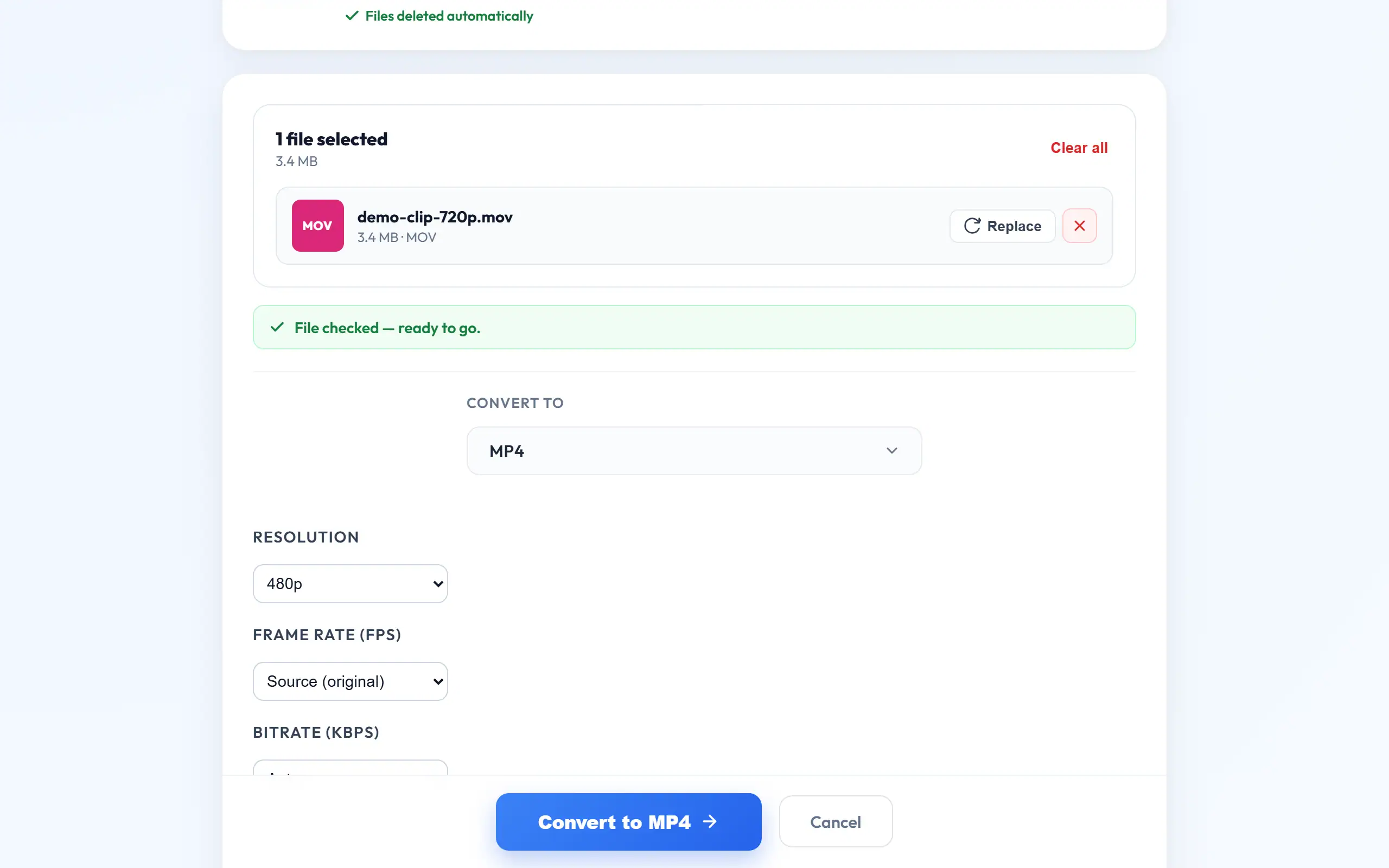
- Set a lower resolution, such as 720p, and if needed, enter a bitrate based on the formula above.
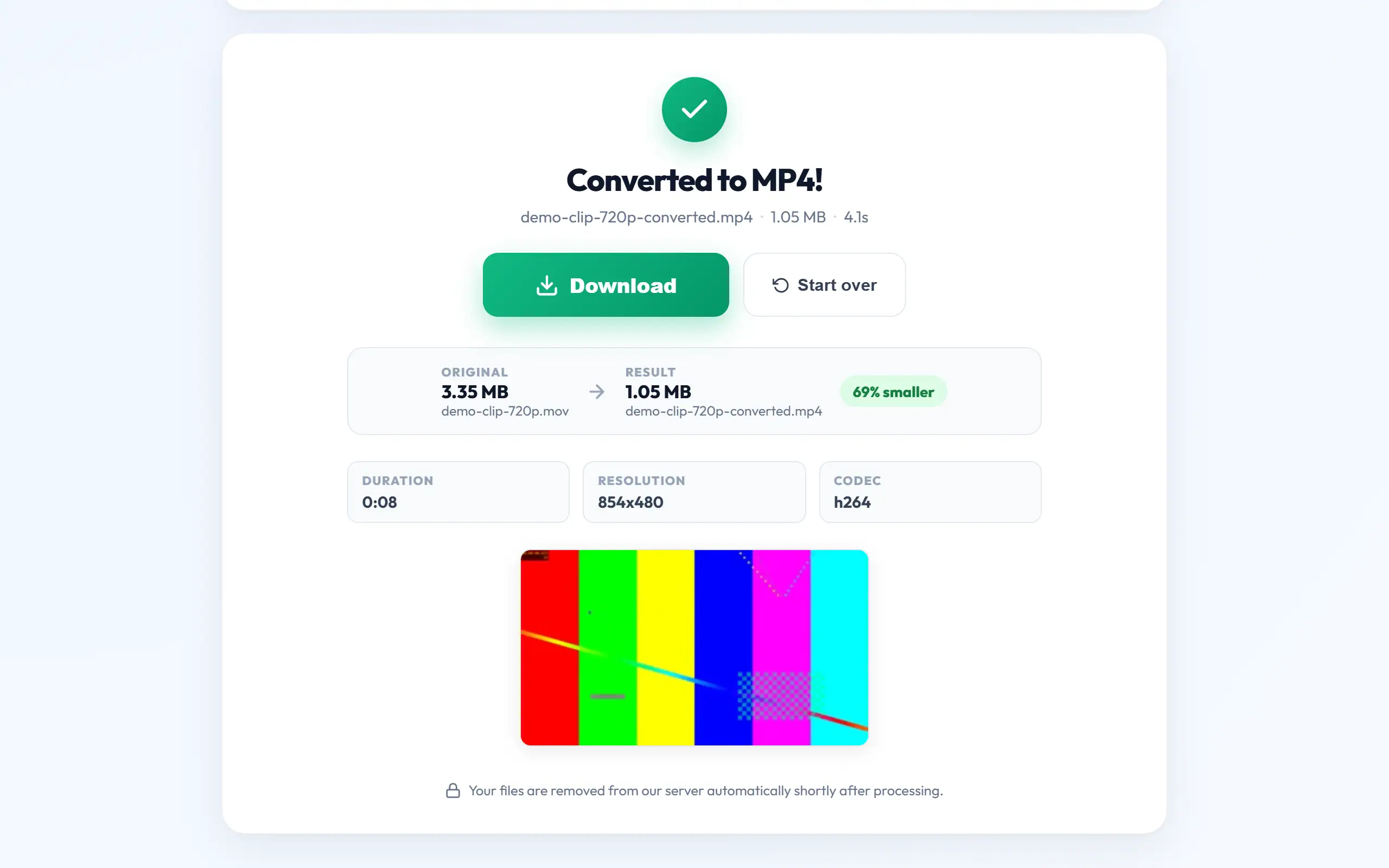
- Convert it, download the result, and check both the file size and how it looks on the device people will use.
Which settings suit which situation?
For sending to friends over messaging, 720p at around 2 Mbps usually gives a good balance. Messaging apps may re-compress videos sent in the normal way, so a much better picture will not always survive. Sending as a document keeps your file as it is, though apps set limits that change from time to time.
For email, the usual attachment limit is about 25 MB for Gmail and many others, so a short clip at 480p or 720p with a low bitrate can fit. For anything longer, a shared link from Google Drive or YouTube is more practical, and it saves your recipient from a large download.
For a website, use MP4, and consider a lower resolution for visitors on phones. For keeping a family video, do not compress the only copy at all. Storage is cheap, and detail once discarded is gone forever, so keep the original and make a smaller copy for sharing.
Choosing the right format
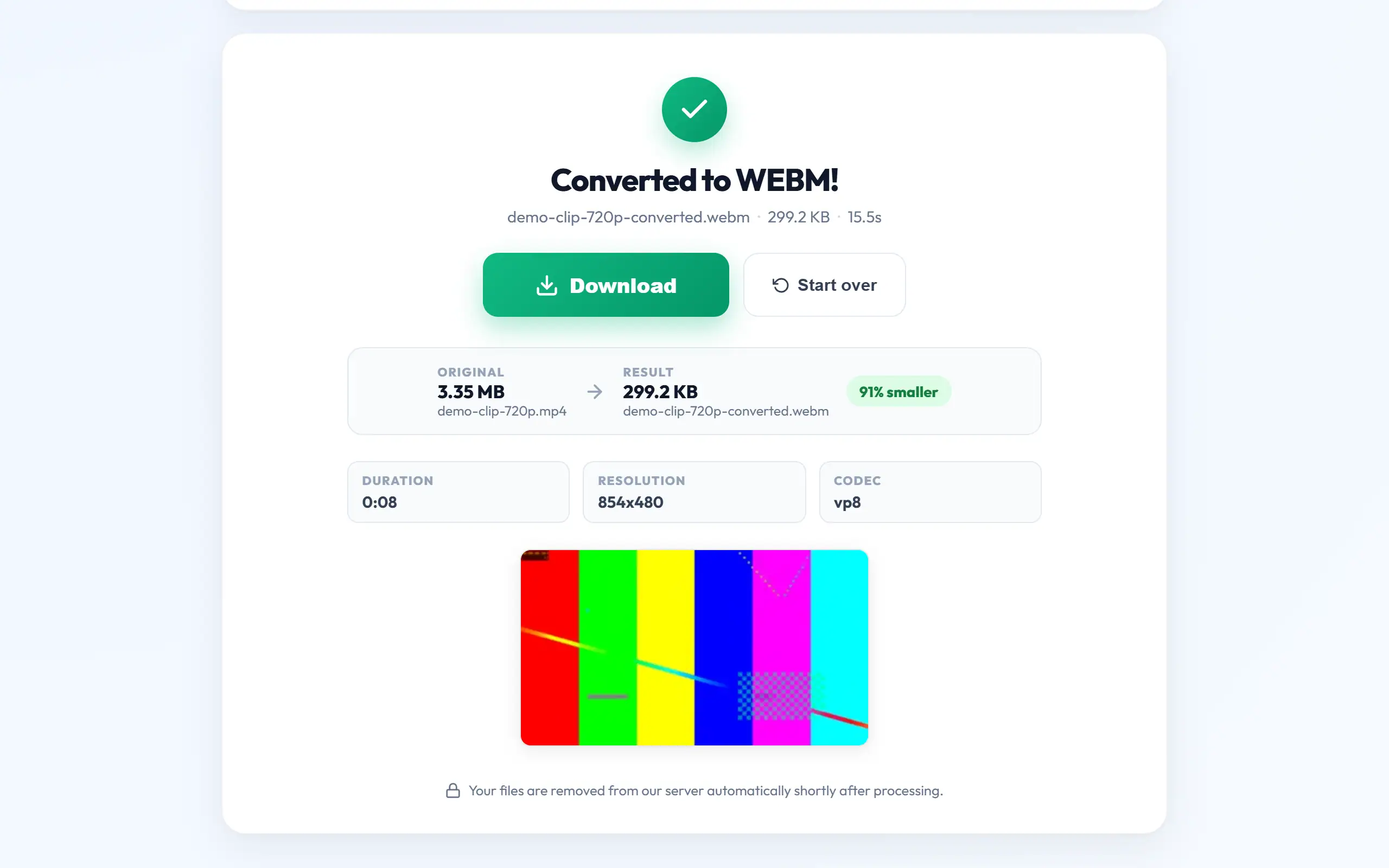
MP4 with H.264 is the safest choice: it plays on phones, computers, TVs and websites, so use it unless you have a specific reason not to. MOV files from iPhones can be converted to MP4 when someone on Windows cannot open them. AVI and older formats can often be made far smaller simply by converting to MP4, as they tend to use old, less efficient compression.
WebM is a good format for web pages. MKV is popular for films with several audio or subtitle tracks, but phones and TVs do not always accept it. Changing format alone is no guarantee of a smaller file, as size depends mostly on bitrate and resolution, so set those too.
Mistakes to avoid
Do not raise the resolution in the hope of improving quality. A 720p clip converted to 4K keeps the same detail, spread across more pixels, in a far bigger file. Similarly, each round of compression loses some quality, so go back to the original every time rather than compressing a compressed copy, as damage builds up.
Avoid setting the bitrate too low for the content. A talking head against a plain wall can look fine at 1 Mbps, whereas sports or handheld footage at the same bitrate falls apart into blocks, because every pixel is changing. Test a short section before you process a long video, so you do not spend time on settings that turn out to be wrong.
Remember that a ZIP will not help, as video files are already compressed and barely shrink further. To cut size beyond these settings, trim the clip, because a shorter video is always smaller. Your phone's built-in editor can trim a video in seconds before you upload it here.
Why audio matters less, and when it matters more
Audio takes only a small slice of most files, typically 128 kbps compared with several thousand for the video, so reducing it will not save much. Keep it at a decent level, as poor sound is often more annoying than a slightly soft picture.
The exception is when the picture hardly matters, as in a recorded lecture or webinar, where people mainly listen. A low resolution and low bitrate are enough for slides, and they can reduce a long recording dramatically. Audio Converter handles audio files, so if you already have the sound as a separate file, an MP3 may be all your audience needs.
Check before you send
Watch the first few seconds and a fast-moving part of the result on the device your viewer will use, and listen to confirm that the sound is still in sync. Then check the actual file size against the limit. If it is slightly over, reduce the bitrate a little and convert again from the original.
Frequently asked questions
Why did my video get bigger after converting?
If the original used efficient compression at a low bitrate, a conversion with a higher bitrate or resolution adds data. Choose a lower resolution, and set a bitrate below the original.
Which resolution is best for phones?
720p looks good on most phone screens and is far smaller than 1080p. Use 1080p when people may watch on a bigger screen or the video contains small text.
How long will the conversion take?
It depends on the length and size of your video, as every frame gets re-encoded. Short clips are quick, while long or high-resolution files can take several minutes.
Will lowering the frame rate make it look jerky?
Going from 60 to 30 fps is fine for most footage. Below 24 fps, movement starts to look noticeably jerky, so avoid going that low unless the video is mainly slides.