How to Convert Word to PDF Without Breaking the Layout
A Word document can look different on every computer, because Word lays out the text using the fonts and settings on that particular machine. A PDF fixes the layout, so what you see is what everyone else sees, and that is why job applications, exam forms, invoices and government portals so often insist on one.
Converting takes seconds, but a few small checks make the difference between a tidy document and one with a stray blank page or a replaced font. This guide covers how to convert, what can go wrong and how to prepare your file so that it comes out right the first time.
Try it now:PDF Converter →
Convert a Word file to PDF in three steps
You do not need Microsoft Word or any installed software. The conversion happens on our server using LibreOffice, and it works from a phone as well as a computer.
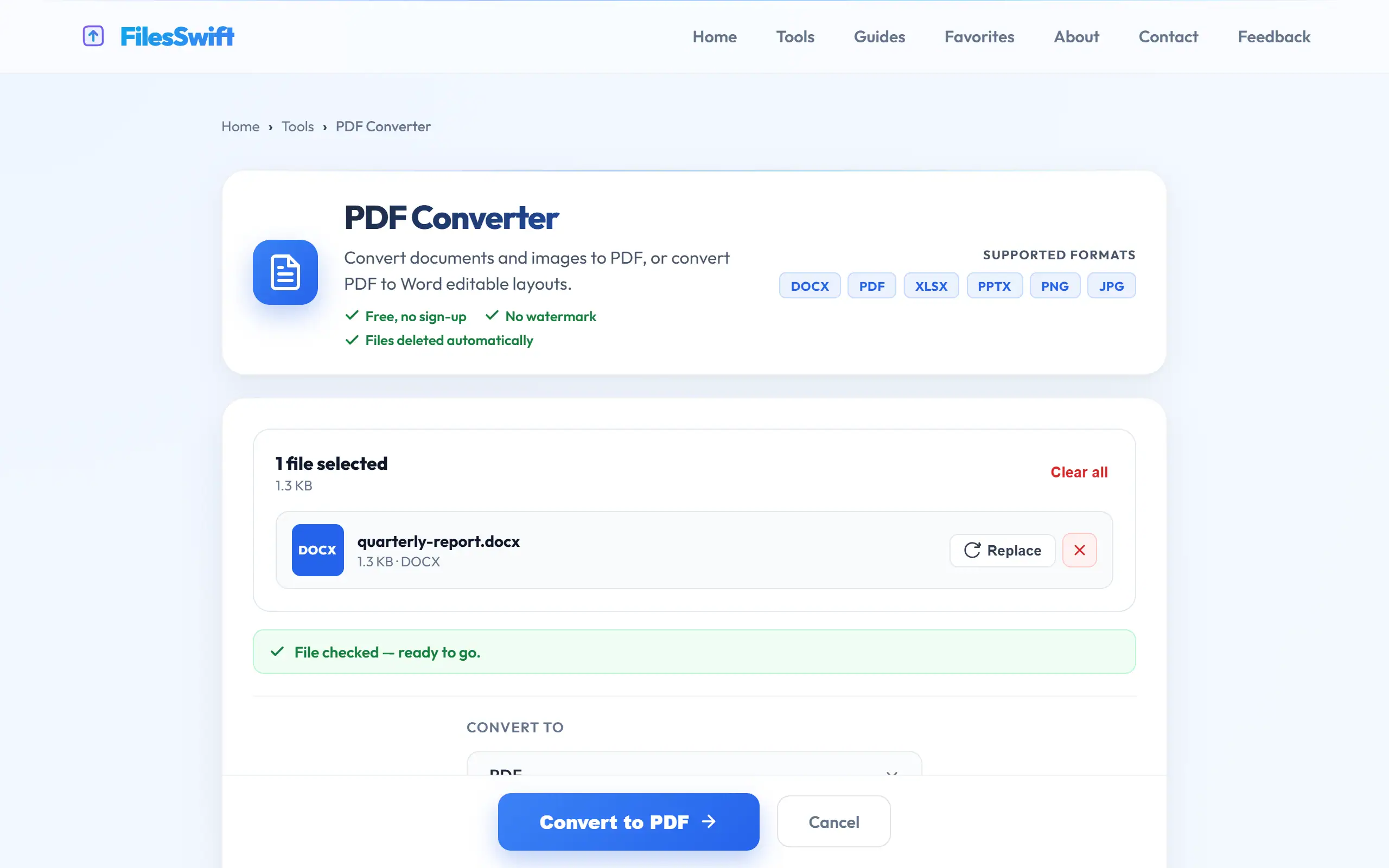
- Open PDF Converter and upload your .doc or .docx file.
- Choose PDF as the output format and press the convert button.
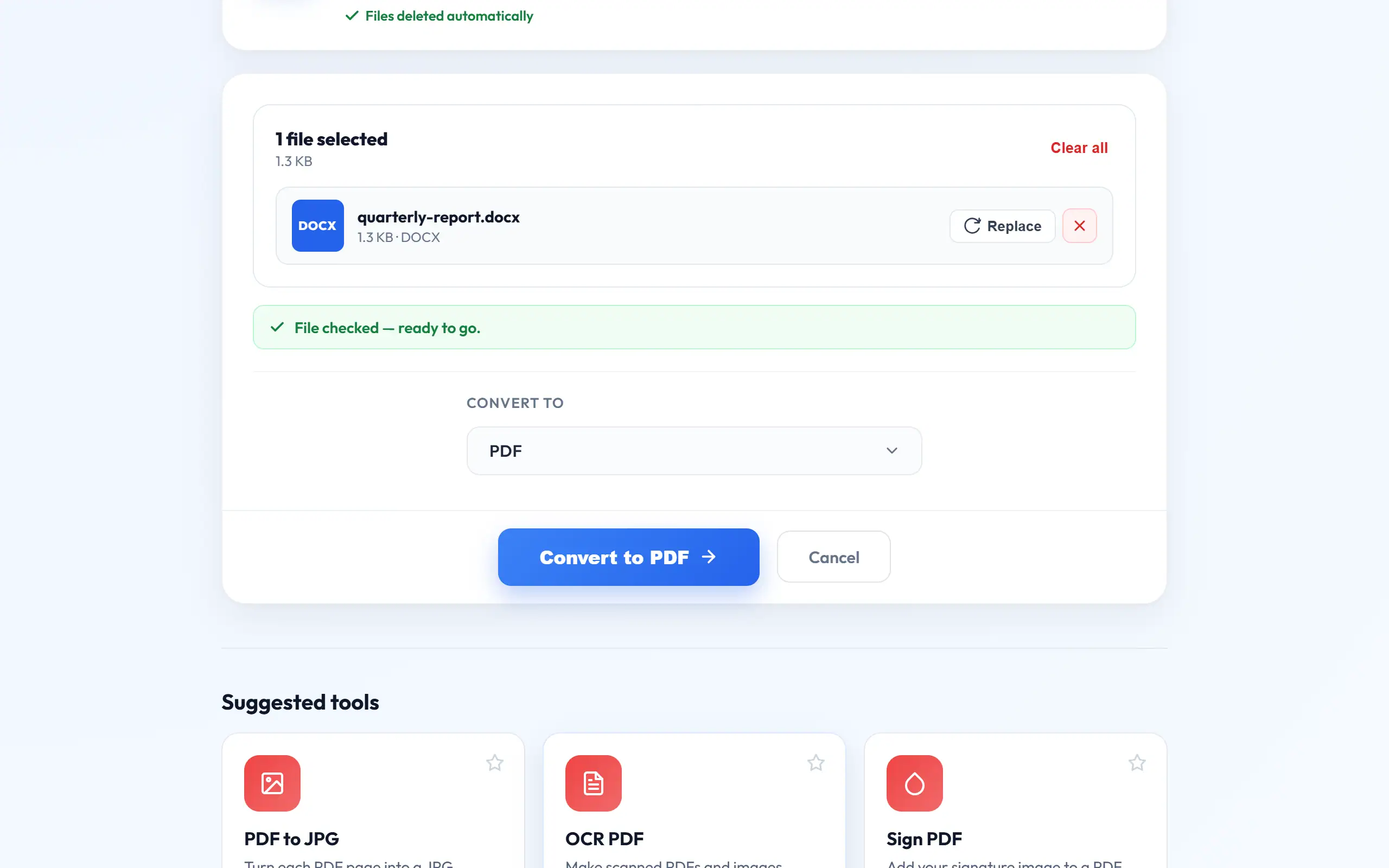
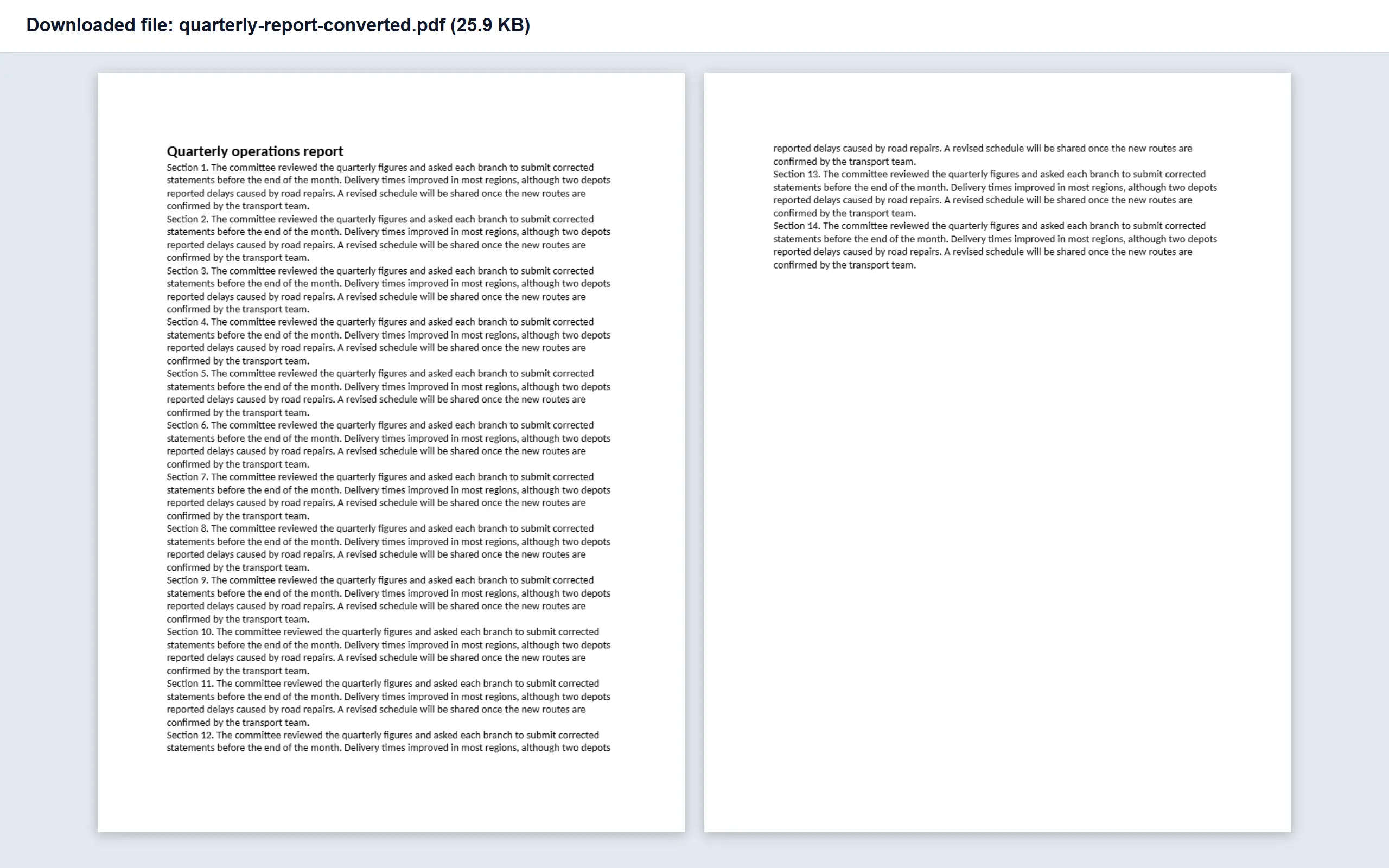
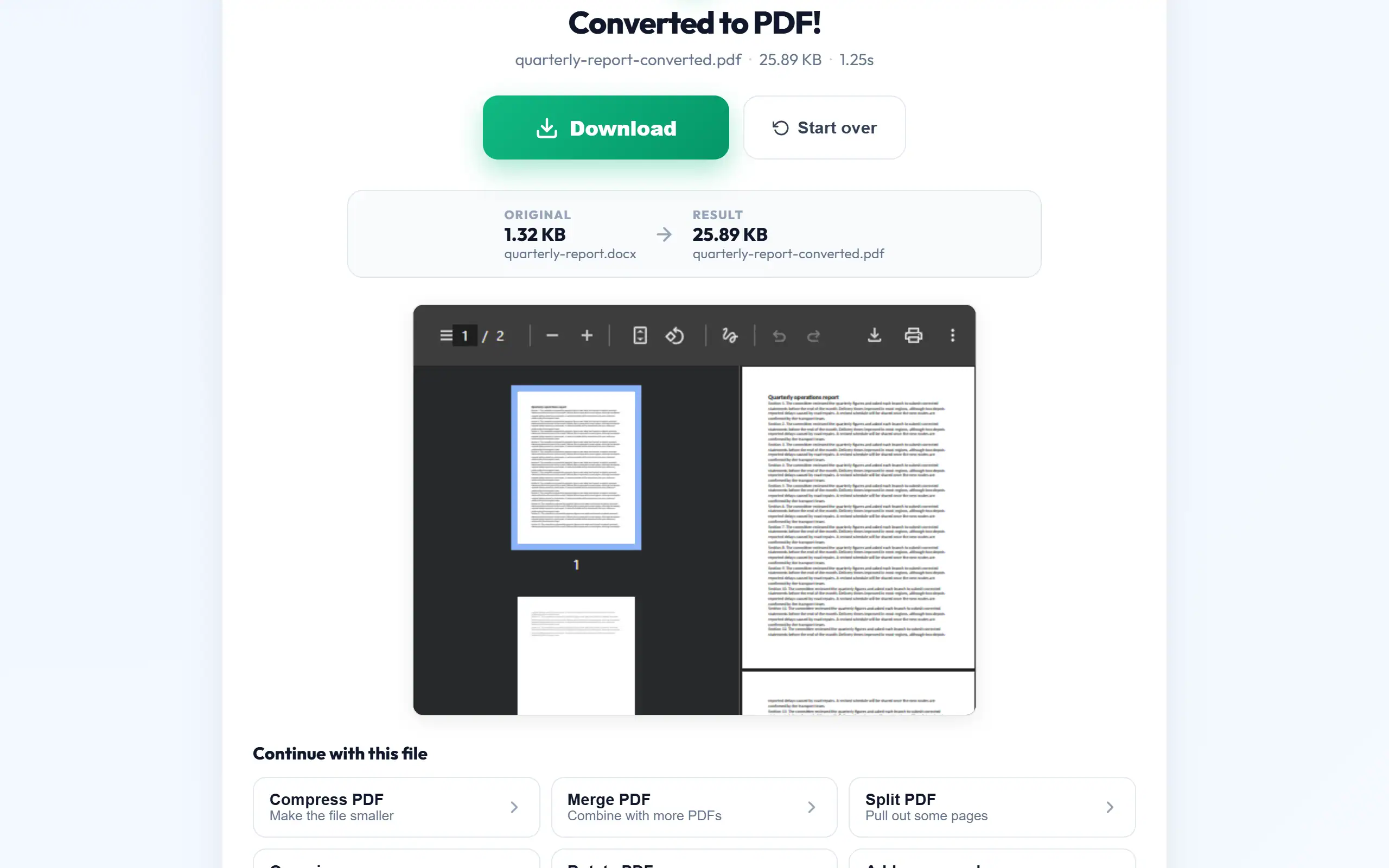
- Download the PDF, then open it and scroll through every page before you send it.
Why fonts are the most common problem
Word files usually do not include their fonts. They only name them, and the program opening the file has to find a match. If your document uses a font that is not installed where the conversion takes place, a similar one is substituted. Letters may then be slightly wider or narrower, so lines break in different places, and a page that fitted neatly may spill onto the next.
Common fonts such as Arial, Times New Roman and Calibri-like alternatives tend to work well. Decorative fonts, brand fonts and older Indian typing fonts are the ones most likely to change. If exact appearance matters, and you have Word on your computer, its own File → Save As → PDF is a good option, since it uses your installed fonts and embeds them in the PDF. Otherwise, switch to a common font before you convert.
Gujarati and Hindi need particular care. Documents typed in Unicode, using fonts like Shruti or Noto Sans Gujarati, generally convert well. Text typed using older non-Unicode fonts depends on that exact font being present, and it can come out as Latin letters without it. Open the result and read a few lines to be sure.
Prepare your document before converting
A little tidying in Word prevents most layout surprises. Use page breaks rather than pressing Enter repeatedly to push text onto a new page. Repeated blank lines may look fine on your screen, but they fall in different places after conversion, which is the main cause of stray blank pages.
Set your paper size to A4 under Layout → Size, as Word sometimes defaults to US Letter. Keep images "In line with text" unless you have a good reason to float them, since floating pictures are more likely to shift. If you have tracked changes or comments, accept or delete them first, so that they do not appear in a document you intended to be final.
Also check your headers, footers and page numbers while you are there. Fields such as dates may update automatically during conversion, so a letter dated with an automatic field may show today's date rather than the date you wrote it. Replace those with plain text in anything that has to stay fixed.
What to check in the finished PDF
Never submit a converted file without opening it. Look through the following quickly: the number of pages against your Word document, blank pages at the end, tables split awkwardly across pages, images in the right place, and special characters such as ₹, bullets and non-English text.
Pay particular attention to the last page, as a single extra line often creates a page with nothing else on it. If that happens, reduce a paragraph slightly, or adjust the spacing in Word, and convert it again. It takes a minute, and it makes the document look far more careful.
Extra blank last page
Text shifted to next page
Strange symbols instead of ₹
Picture moved or overlapping
Page is the wrong size
Trailing empty lines: delete them
Font replaced: use a common font
Font lacks the symbol: change font
Floating image: set "In line with text"
Letter size: set A4 in Word
Keeping the PDF under an upload limit
A text-only Word document produces a very small PDF, usually well under 1 MB. Size becomes a problem when the document includes photos, because each phone picture can be several megabytes, and Word may keep it at full resolution even when it is shown small on the page.
The cleanest fix is in Word itself. Select a picture, open Picture Format → Compress Pictures, and choose a lower resolution for all pictures in the document. Then convert it. Alternatively, resize your pictures with Image Resizer before you insert them. If the PDF is still over the limit, try Compress PDF, keeping in mind that it rebuilds the file structure and does not shrink images, so it helps most with files from office software.
For Indian government and exam portals with limits like 200 KB or 1 MB, our guide to reducing PDF size for online forms goes through the options in order.
Combining with other documents
Applications often need a Word document together with certificates and ID copies in a single file. Convert the Word file first, turn any photos into a PDF using Image to PDF, and then combine everything with Merge PDF in the order that the form lists them.
If your document will be read as a whole, add page numbers last, using Add Page Numbers, so that they run through the entire merged file rather than restarting for each part. If it is a form you filled in, Flatten PDF will fix your answers in place, so they cannot disappear in another viewer.
Should you keep the Word file?
Always. The PDF is the version you send, and the Word file is the version you change. Editing a PDF later is much harder, and converting it back to Word rarely gives a perfect copy of what you began with. Keep both, with a clear naming habit such as resume-2026-draft.docx and resume-2026.pdf, so that you never accidentally send the wrong one.
Also remember that a PDF is not automatically private. It can still contain the document's author name and title in its properties, sometimes including an old file name. If you are sending a document outside your organisation, check its properties with Edit Metadata and clean up anything you would rather not share.
Resumes and job applications
A resume is a good reason to send PDF, because it keeps your layout intact on a recruiter's phone. Use a common font, keep links clickable, name the file with your own name, and check that automated systems can read it by selecting the text in the PDF.
Frequently asked questions
Do I need Microsoft Word to convert?
No. You upload the file and the conversion runs on our server, so it works on any phone or computer with a browser, including those without Word.
Can I convert an old .doc file?
Yes. Both .doc and .docx are accepted. Old files with unusual formatting may need more checking afterwards, so look through every page.
Will links in my document still work?
Web links normally carry over as clickable links in the PDF. Test one or two, especially in a resume or a report where people are expected to click them.
Is my document stored after conversion?
No. It is used only to create the PDF and deleted automatically, normally within 15 minutes. Details are in our Privacy Policy.