How to Split a PDF and Extract the Pages You Need
Long PDFs are awkward to share. Often you need only one chapter of a report, the signed page of an agreement, or just the first page of a certificate for an upload form. Sometimes a scanner has joined twenty different invoices into a single file, and they all need separating.
FilesSwift has four tools for this kind of job, and they differ in what you end up with. This guide shows which one to choose, how to write page numbers correctly, and how to avoid the mistakes that send you back to the start.
Try it now:Split PDF →
Four tools, four different results
The quickest way to choose is to ask what you want at the end. If you want many separate files, one per page, use Split PDF. If you want a single new file containing a few chosen pages, use Extract Pages. If you want the same document minus a few pages, use Remove Pages. If you want the pages in a different order, use Organize PDF.
All four copy your pages without re-compressing them, so text stays sharp and images keep their quality. Your original file is not changed; you download a new one each time.
Split PDF: 1-3
Extract Pages: 1-3
Extract Pages: 1,3,5-7
Remove Pages: 2,4-6
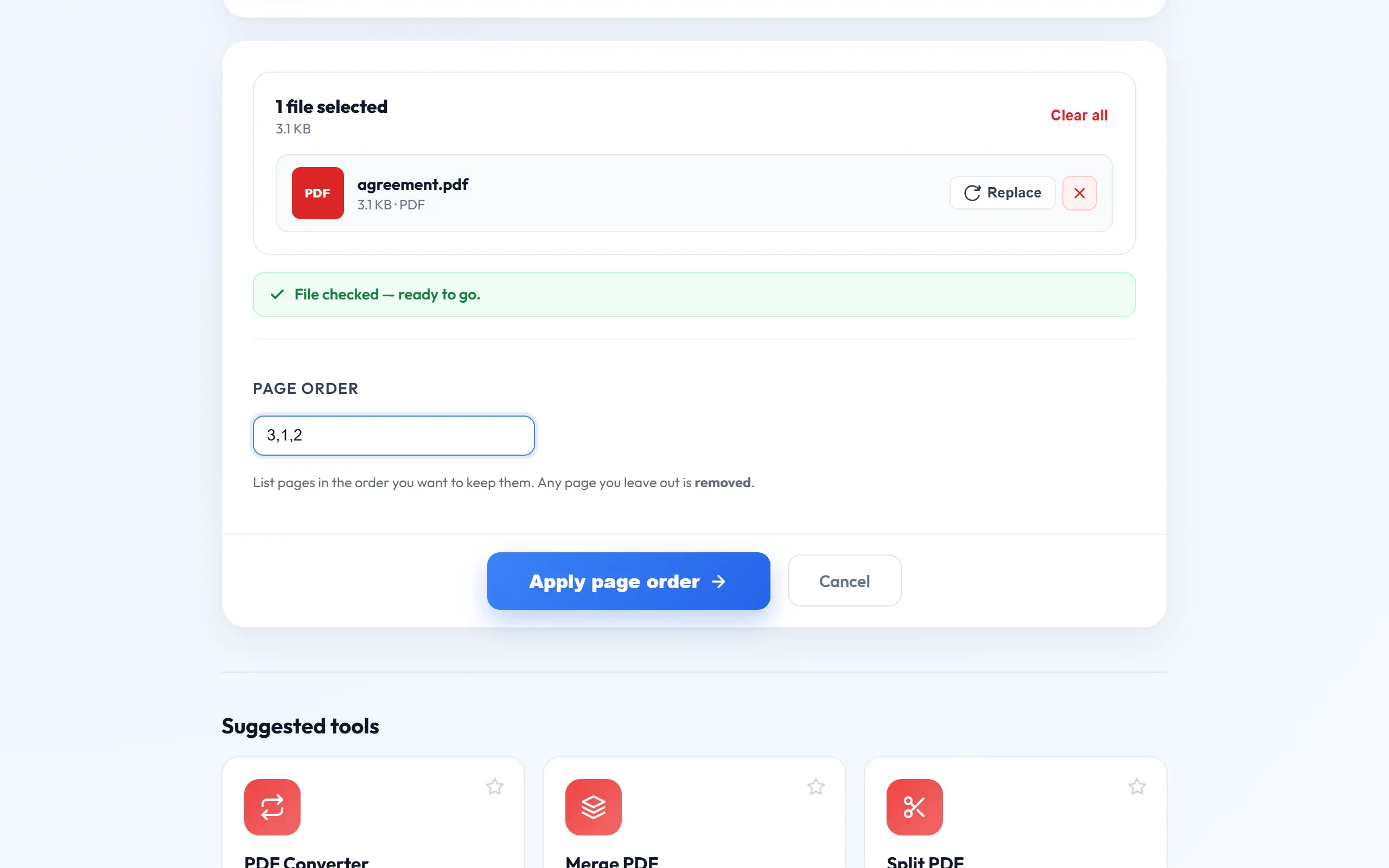
Organize PDF: 3,1,2
Organize PDF: 10-1
3 one-page PDFs in a ZIP
1 PDF with pages 1, 2 and 3
1 PDF with pages 1, 3, 5, 6, 7
1 PDF with pages 1, 3, 7, 8, 9, 10
1 PDF: page 3 first, then 1 and 2
All 10 pages in reverse order
How to write page numbers
All these tools use the same simple notation. Use a comma between separate items and a hyphen for a range, so 1,3,5-7 means pages 1, 3, 5, 6 and 7. Spaces do not matter. In Organize PDF, the order you type is the order you get. In Extract Pages, the pages always come out in their original order, whatever order you type them in.
Use the page's position in the file, not the number printed on it. Reports often have a cover and contents pages before page 1, so the page printed as "10" may really be the 14th in the file. Your PDF viewer shows the real position in its toolbar, usually as something like "14 of 60".
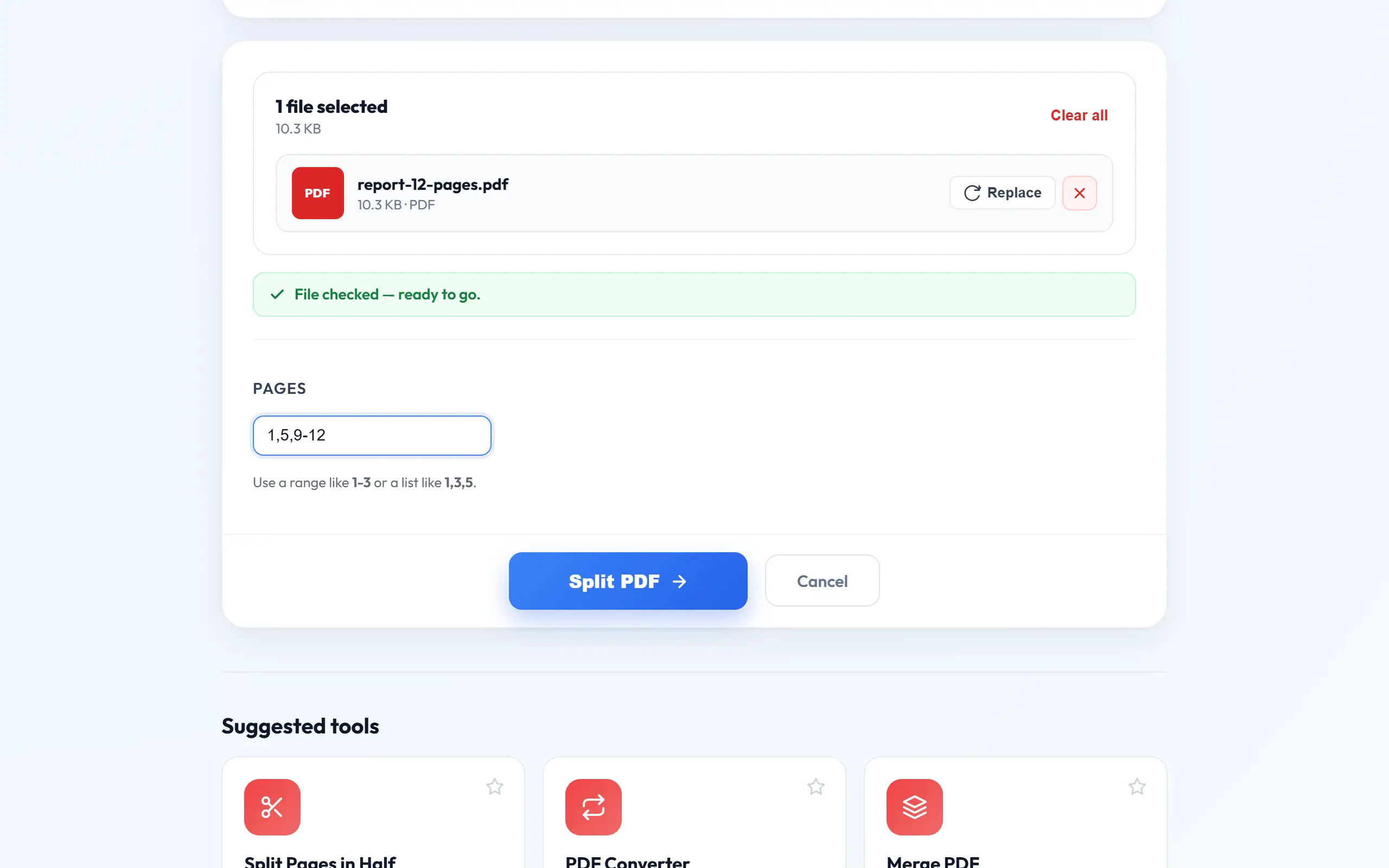
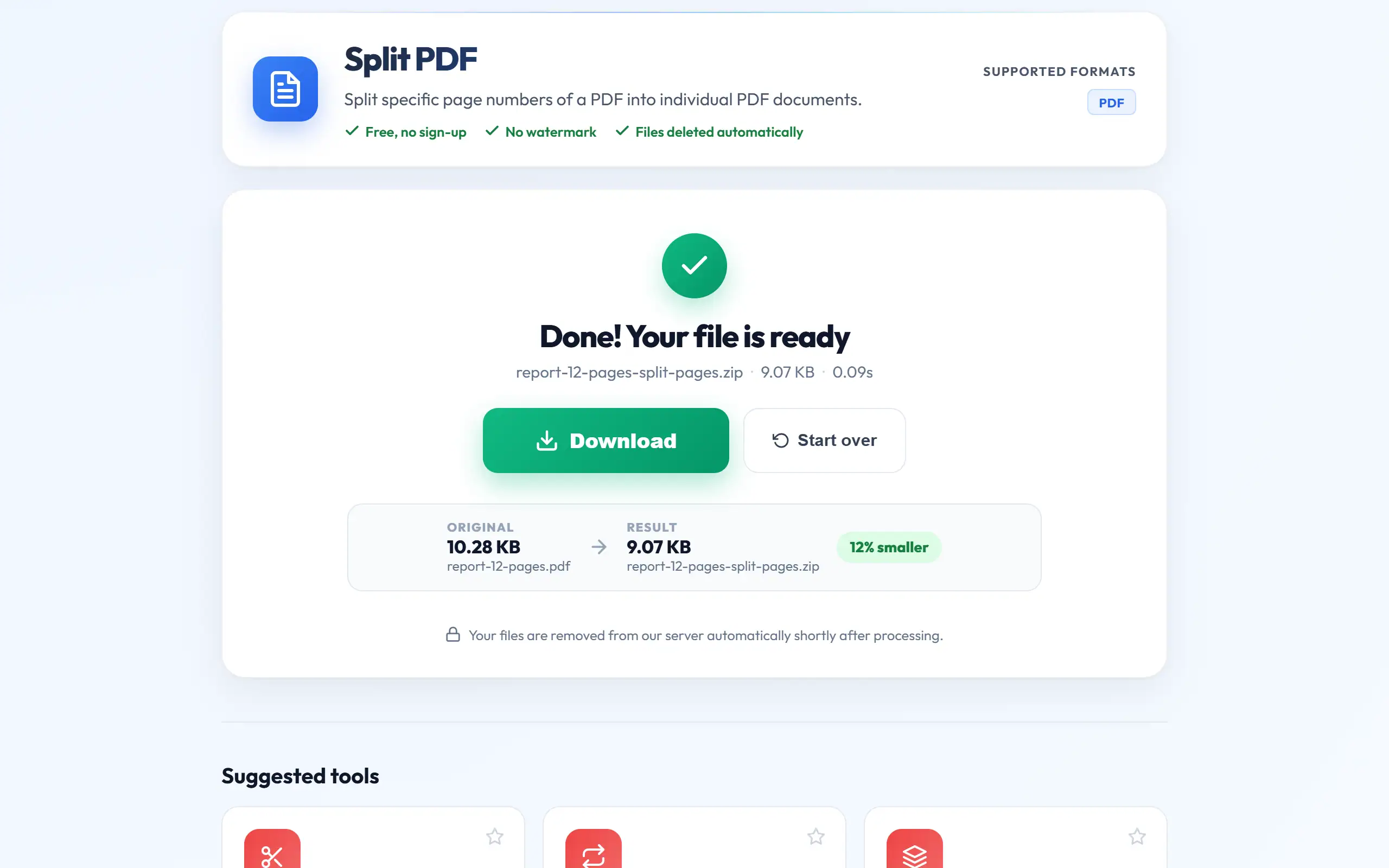
Split a PDF into separate files
Use this when each page is its own document, such as a batch of scanned invoices or certificates.
- Open Split PDF and upload the file.
- Type the pages you want, for example 1-20, or a smaller range if you need only some.
- Download the ZIP, which holds one PDF per page, and extract it on your device.
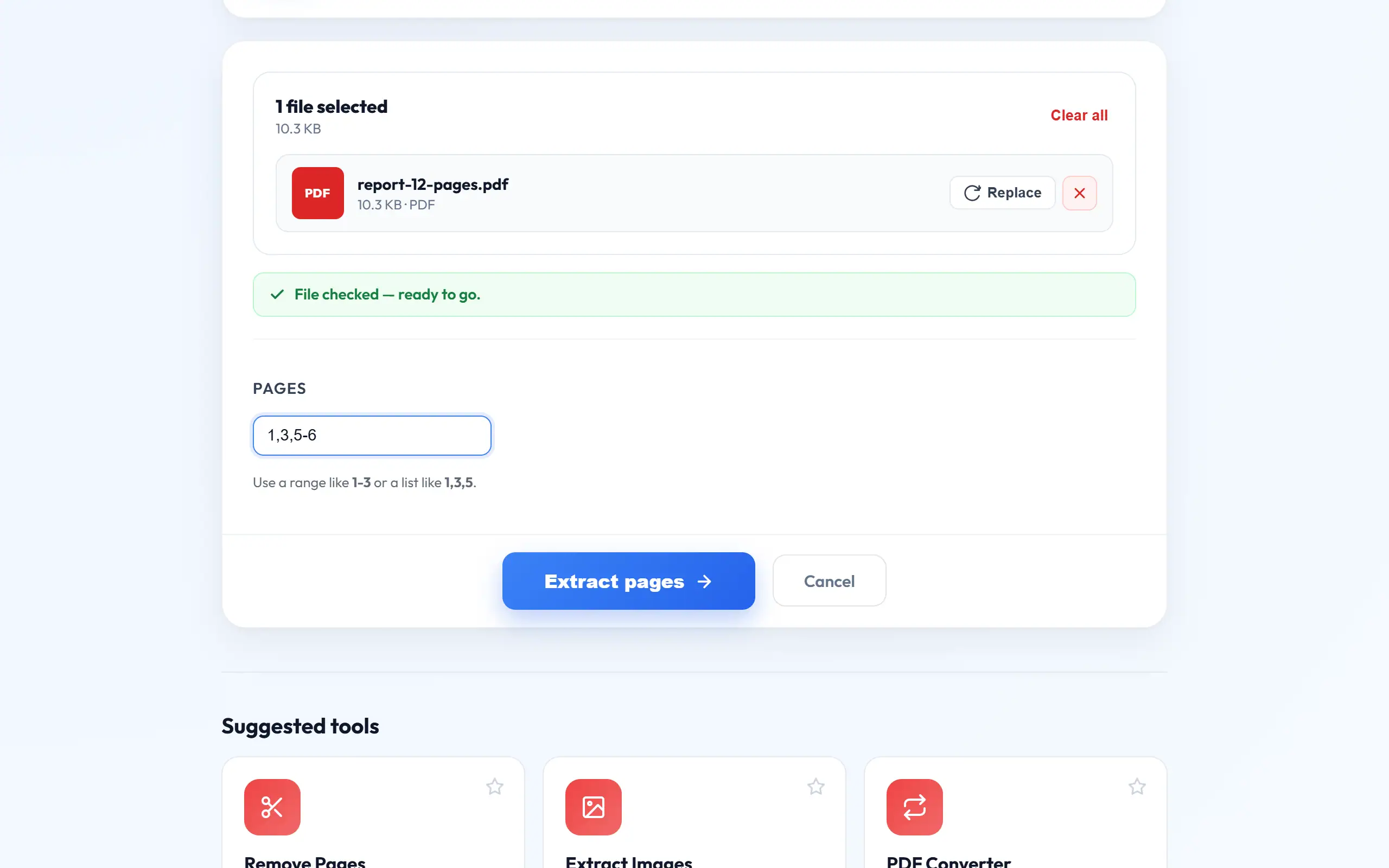
Extract just the pages you need
This is the most useful of the four for everyday tasks. Say that a portal wants only your marksheet, which is on page 7 of a 30-page scan. Type 7 in Extract Pages, and you have a one-page PDF to upload. It also solves many size-limit problems without any compression, because sending fewer pages simply makes the file smaller.
To break a long document into chunks, run the tool several times with different ranges, such as 1-50, 51-100 and 101-150. Each one gives you a separate, smaller file, and that can get a big document past an email attachment limit. Name each part clearly, because extracted files can look identical from the outside.
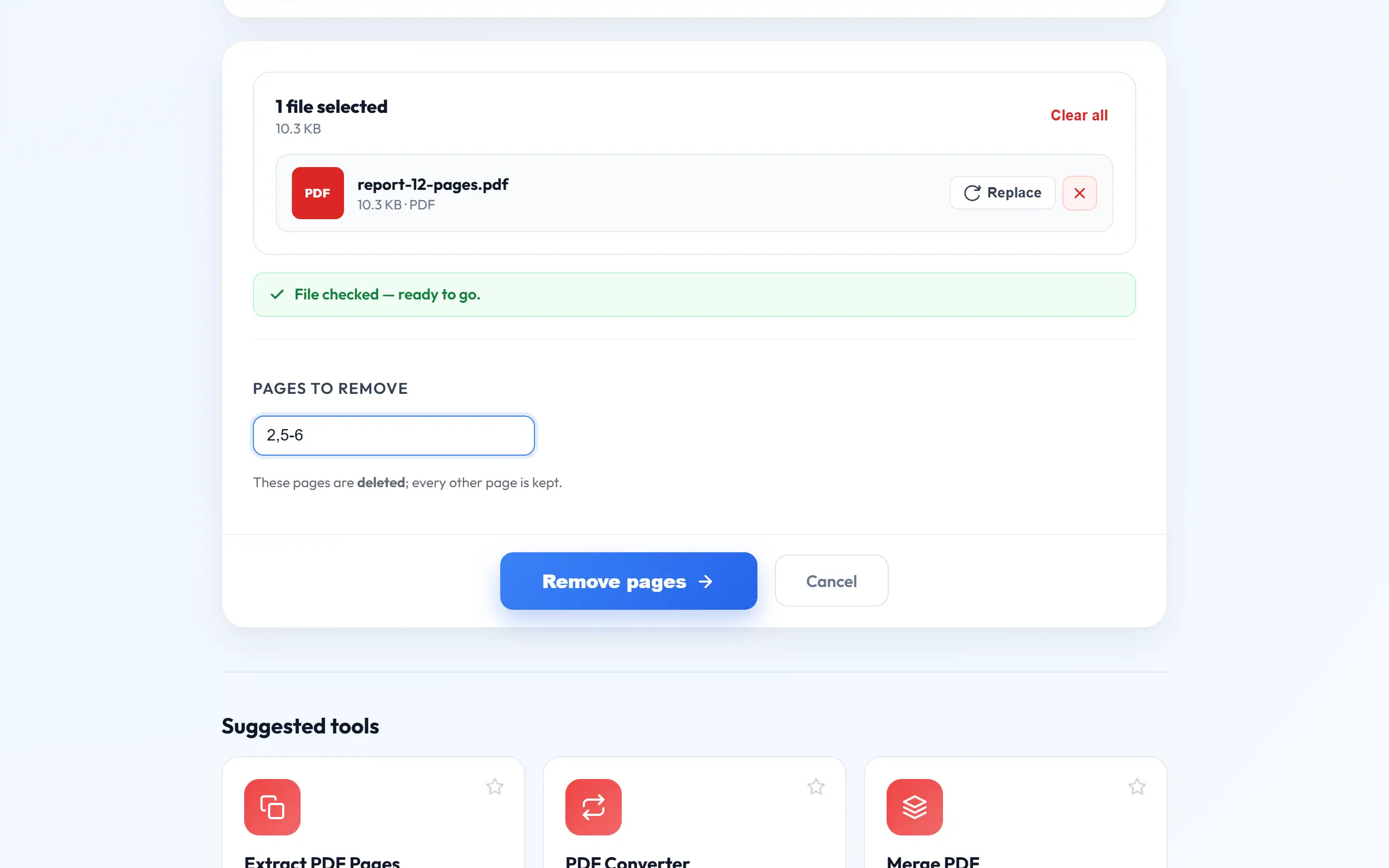
Removing unwanted pages
Scanned documents often contain blank backs, duplicates or instruction pages nobody needs. Removing them makes the document cleaner and, since scanned pages are heavy, can noticeably reduce its size. Scroll through the thumbnails in your PDF viewer and write down the position of each page to remove, and then enter them, such as 2,4,6.
Take care with long lists. Because you are deleting, a typo removes the wrong page, so check the result by looking at the page count and flicking through it. Should you make a mistake, simply start again from the original, which remains unchanged.
Fixing the order of a scan
Double-sided scanning on a single-sided feeder often produces pages out of order: first all the fronts and then all the backs in reverse. Organize PDF can put them right, although you have to work out the order. For six sheets scanned that way, the file contains fronts 1, 3, 5, 7, 9, 11, followed by backs 12, 10, 8, 6, 4, 2.
So the correct order is to take positions 1, 12, 2, 11, 3, 10, 4, 9, 5, 8, 6, 7. Type that list, and the document reads correctly. Check the result against the printed page numbers. Remember that a page you do not list is dropped, which is useful for removing pages while reordering, yet easy to do by accident.
Common problems
If a tool says a page does not exist, you have typed a number beyond the end of the document, so check the total page count. If the file is rejected as protected, remove the password first with Unlock PDF, which needs the password you already know.
Features that belong to the whole document, such as bookmarks and some form fields, may not carry over to the new file. If you are extracting a filled-in form, run Flatten PDF first, so that your answers are part of the page. And if you plan to recombine parts later, keep the original safe, as it is often the easiest way to start over.
A worked example: getting a 90-page scan past an upload limit
Suppose a university portal wants your project report, but only allows 5 MB per file, and your scan is 90 pages and 27 MB. That works out at about 300 KB a page, so each uploaded part can hold roughly 16 pages. Before splitting anything, look for pages you can drop. Blank backs and duplicate cover sheets are common in scans, and removing ten of them saves about 3 MB straight away.
If the portal accepts several parts, use Extract Pages with ranges such as 1-16, 17-32 and 33-48, and name the files report-part-1.pdf, report-part-2.pdf and so on, so that the reader can follow the order. Split at a chapter break if you can, as a part that starts in the middle of a section is harder to read. Check the size of each part after downloading, because pages with photos weigh more than pages of plain text, so parts of equal length may not be equal in size.
If the portal insists on one file, splitting will not help. You need to reduce the images instead, which our guide on reducing PDF size for online forms explains step by step. Split PDF itself is rarely the right choice here, since ninety separate one-page files would be of little use to anyone.
Frequently asked questions
Can I split by file size, such as parts under 2 MB?
Not automatically. Use Extract Pages with page ranges, check each part's size, and adjust the ranges. Scanned pages are often similar in size, so one result gives a good estimate.
Can I extract the same page twice?
Not with Extract Pages, which keeps each page once. Organize PDF allows repeats, so typing 1,1,2 gives you page 1 twice, followed by page 2.
Will links inside the PDF keep working?
Page content is copied exactly, although links pointing to pages that you did not keep have nowhere to go. Links to websites generally keep working.
How do I open the ZIP on my phone?
Android and iPhone can both open ZIP files from their Files apps. Tap the ZIP, and it extracts into a folder containing your individual PDF pages.