How to Convert PDF to Word and Keep the Formatting
You have a PDF and need to change something in it, perhaps a date in an agreement, a section of a report or a table in an old document. Converting to Word is the usual answer, but a PDF was never designed to be edited, so it helps to understand what the conversion can and cannot do.
A PDF stores where each letter sits on the page, not the paragraphs and tables a person sees. A good converter has to work that structure out again from the positions of the text and lines. This guide explains what to expect, and how to get an editable document with the least tidying afterwards.
Try it now:PDF Converter →
Convert a PDF to Word in three steps
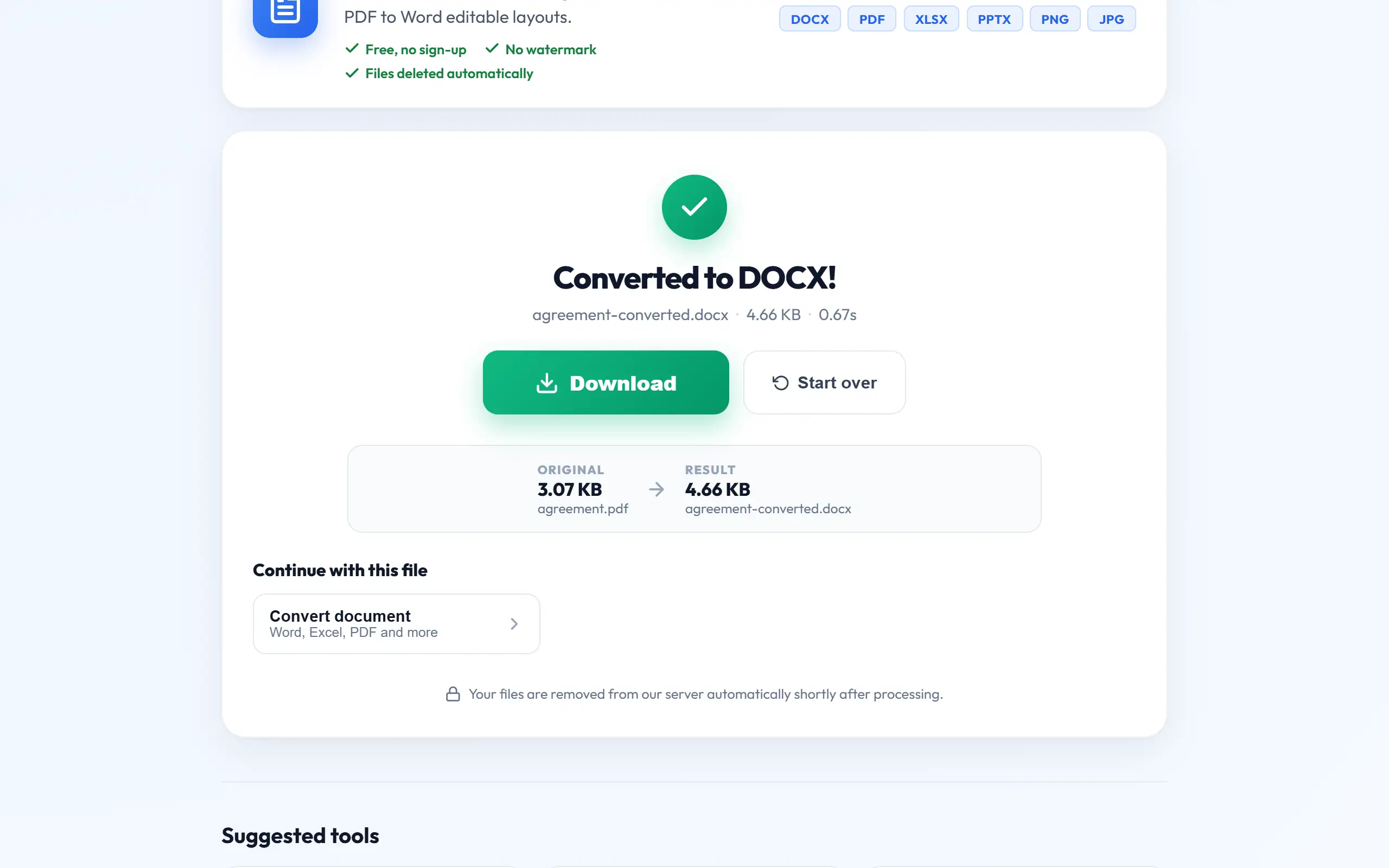
The tool produces a real, editable .docx file containing text and tables, rather than pictures of your pages.
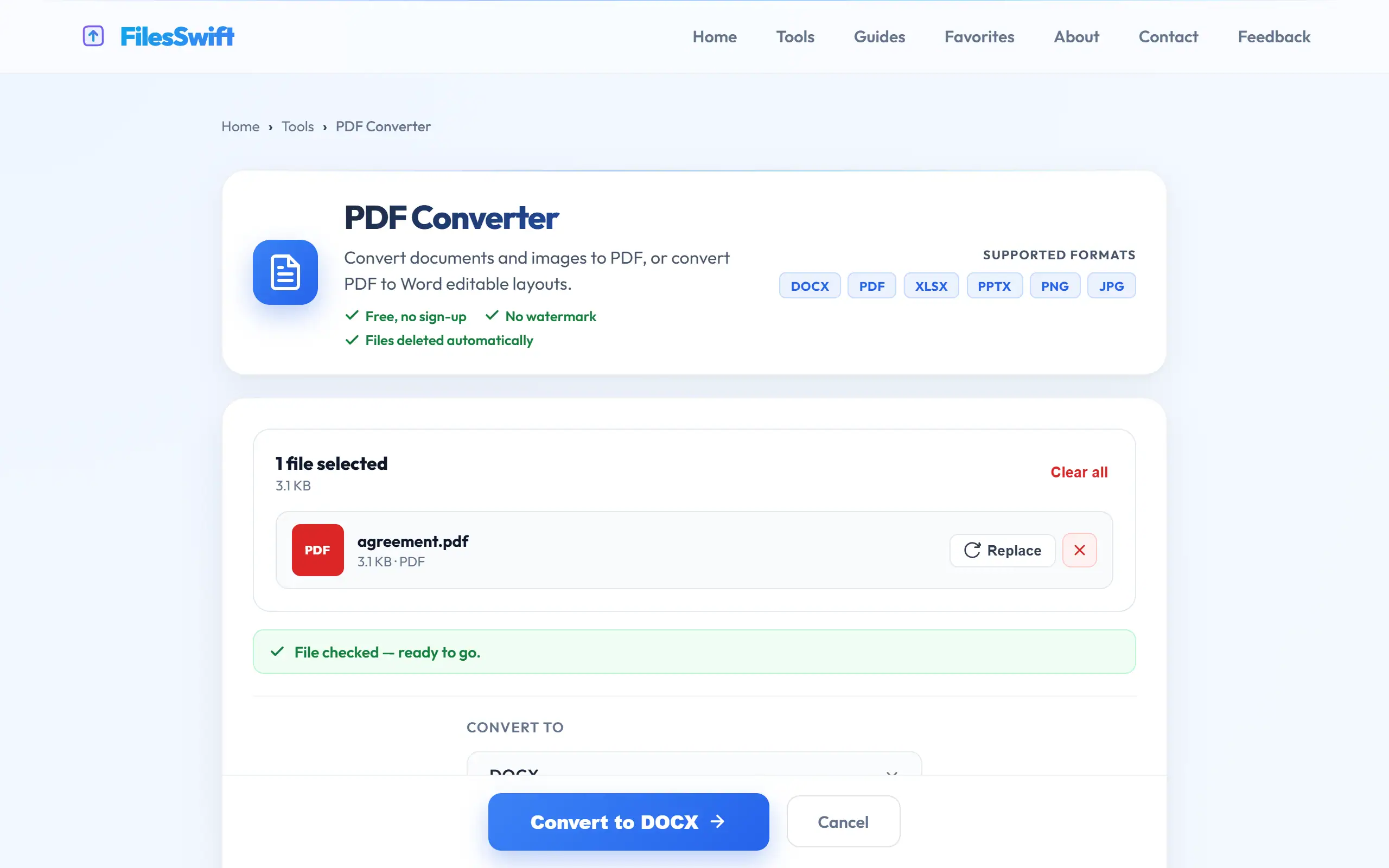
- Open PDF Converter and upload your PDF.
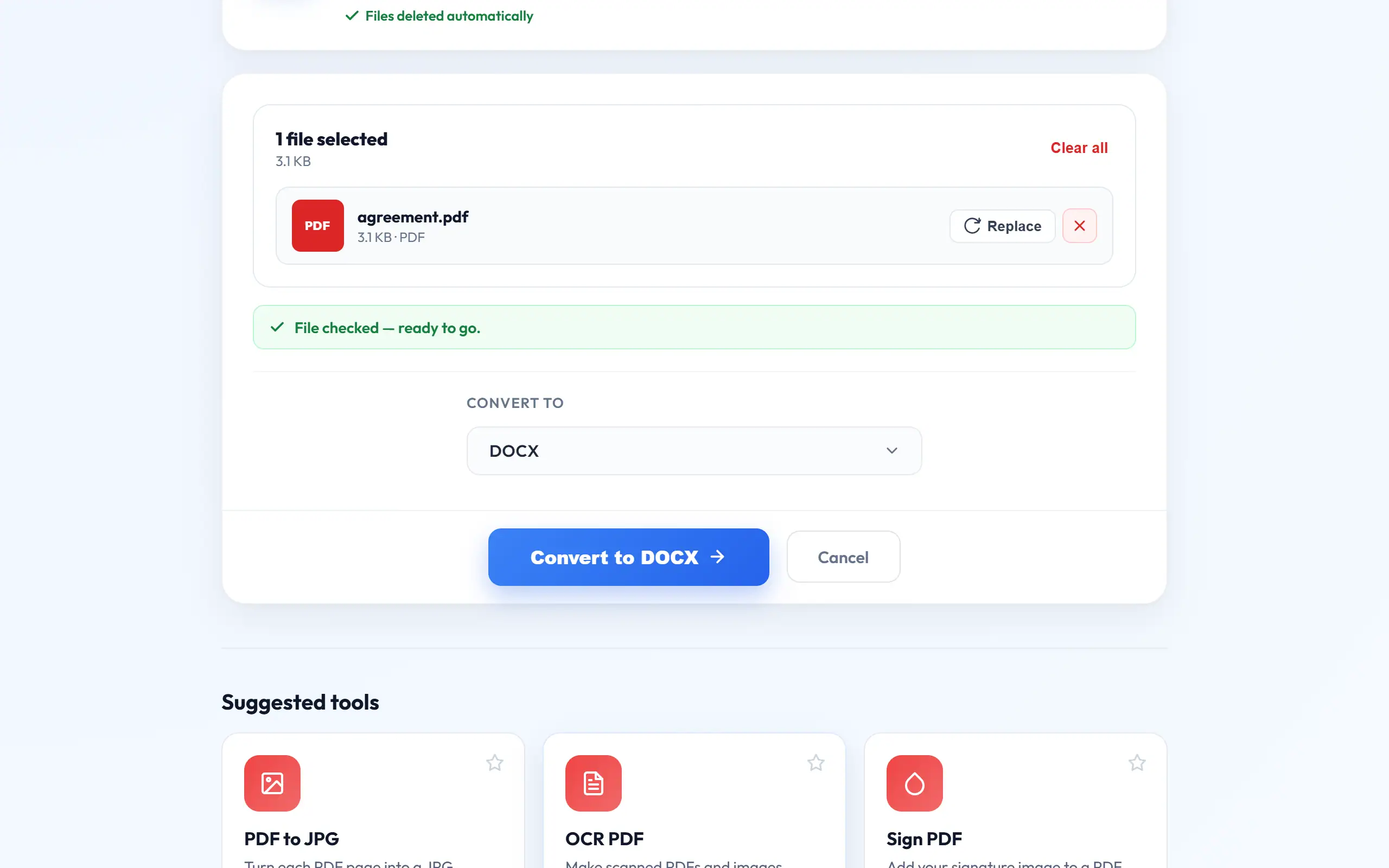
- Choose DOCX as the output, or DOC if an older system needs it, and press convert.
- Download the file, open it in Word or Google Docs, and check it against the PDF.
What the converter rebuilds
Our converter reads the position, font, size and colour of every piece of text, along with the lines and shading on each page, and it uses those to reconstruct the document. Lines of text are joined back into paragraphs, so they rewrap naturally as you edit, rather than each line ending in a hard break.
Headers and footers that repeat on each page are placed in Word's real header and footer areas, with page numbers as live fields. Tables drawn with borders become genuine Word tables, including merged cells, and two- and three-column pages are set up as Word columns. Pictures are put back in place, and the page size, margins and font sizes follow the original.
You can test this for yourself: in the Word file, click in a paragraph and type a few extra words. The following text should move along naturally, and that is the sign of a properly rebuilt document rather than a page full of separate text boxes.
Digital PDFs and scanned PDFs are very different
A digital PDF, exported from Word, Excel or a billing system, contains real text, and it converts well. A scanned PDF is a photograph of a page, so there is no text in the file at all. Converting one to Word gives you a Word file holding a picture of each page, which you cannot edit.
To check which you have, try to select a sentence in your PDF viewer. If individual words highlight, it is digital. If not, run it through OCR PDF first, which adds a text layer for English documents, and then convert the result. Expect to proofread it carefully, since OCR can misread characters, especially in numbers and on poor scans.
What usually needs tidying, and why
Some things cannot be perfectly recovered, because the PDF simply does not contain them. Tables with no visible lines are the classic example: to a converter, they look like text with gaps, so they generally come out as text separated by tabs, and you may want to turn them into a table in Word using Insert → Table → Convert Text to Table.
Charts and diagrams drawn as shapes do not become editable Word charts, although their text labels are kept. Fonts are another common difference. If a PDF uses a font you do not have, Word substitutes another, and lines can break differently. Installing that font, or selecting all the text and choosing a common one, usually fixes this quickly.
Text in PDFs written in Gujarati, Hindi and other Indian languages can also come out with some letters in the wrong order, particularly in documents made with older software, because of the way the characters are stored in the file. Our converter corrects the common patterns, but always read such text carefully against the original.
Do you actually need Word?
Conversion is the right choice if you need to rewrite paragraphs. Many smaller changes do not need it, and you may keep your document more intact by skipping it. To add a date, a reference number or a short note, Add Text to PDF leaves everything else untouched. To add a signature, use Sign PDF. To delete, reorder or rotate pages, the dedicated tools do it with no risk to the layout.
If you only want the words, for translating or pasting into another program, PDF to Text is quicker and gives you a clean text file. Choosing the smallest tool for the job saves you from checking a whole document for changes that you never meant to make.
Rewrite paragraphs
Fill in a date or a note
Add your signature
Delete or reorder pages
Copy the words only
Edit a scanned document
PDF Converter (to Word)
Add Text to PDF
Sign PDF
Remove Pages / Organize PDF
PDF to Text
OCR PDF, then PDF Converter
A checklist after converting
Put the PDF and the Word file side by side. Compare the page count first. A shift of a page or two tells you the layout has moved somewhere, and you can find where by checking the first line of each page. Then check that tables are complete, numbers are correct and nothing has been dropped from headers and footers.
Pay special attention to figures in invoices, statements and contracts. A digital PDF will carry its numbers across exactly, but after OCR a 3 may have become an 8, and such errors are easy to overlook. Once you are happy, save the Word file under a new name, make your edits, and export a fresh PDF for sending.
Password-protected and very long PDFs
A PDF locked with an open password cannot be converted until the password is removed. If it is your own document and you know the password, use Unlock PDF first. Damaged files return a clear error message, in which case Repair PDF is worth trying.
Very long documents, of more than about 400 pages, are converted by a simpler text-based method, so their layout will not be preserved. For those, it is better to extract only the section you need with Extract Pages, and convert just that part. Even for shorter documents, converting only the pages you intend to change often leaves less to check.
After editing: back to PDF
Once your changes are made, export a fresh PDF rather than sending the Word file, particularly if the original was a PDF for a reason. Use Word's own Save as PDF, or PDF Converter, and compare the page count with the original. If the document has been signed or stamped, remember that editing it may mean it needs signing again.
Frequently asked questions
Will my converted file be fully editable?
For digital PDFs, yes: text and tables are real Word content. Scanned pages come through as pictures, unless you run OCR PDF on them first.
Why does a table appear as plain text?
It probably has no visible border lines in the PDF. Select the text in Word, then use Insert → Table → Convert Text to Table to rebuild it.
Which is better, DOC or DOCX?
DOCX, unless a system specifically requires the older format. It is the modern standard, and it opens in Word, Google Docs and LibreOffice.
Is it legal to edit a PDF someone else made?
It depends on the document and your rights to it. Your own documents are fine, but do not alter official certificates or others' work in a way that could mislead anyone.