How to Add a Watermark to a PDF
A watermark is text or an image placed on every page of a document. It tells a reader that a document is a draft, shows who it belongs to, or marks a copy as meant for one specific purpose. It is one of the simplest ways to reduce misuse of the documents you share.
There are several ways to add one, depending on whether you want words, a logo or a full letterhead. This guide compares them, explains how to word a watermark that actually helps, and is honest about what watermarks cannot do.
Try it now:PDF Watermark →
Which tool should you use?
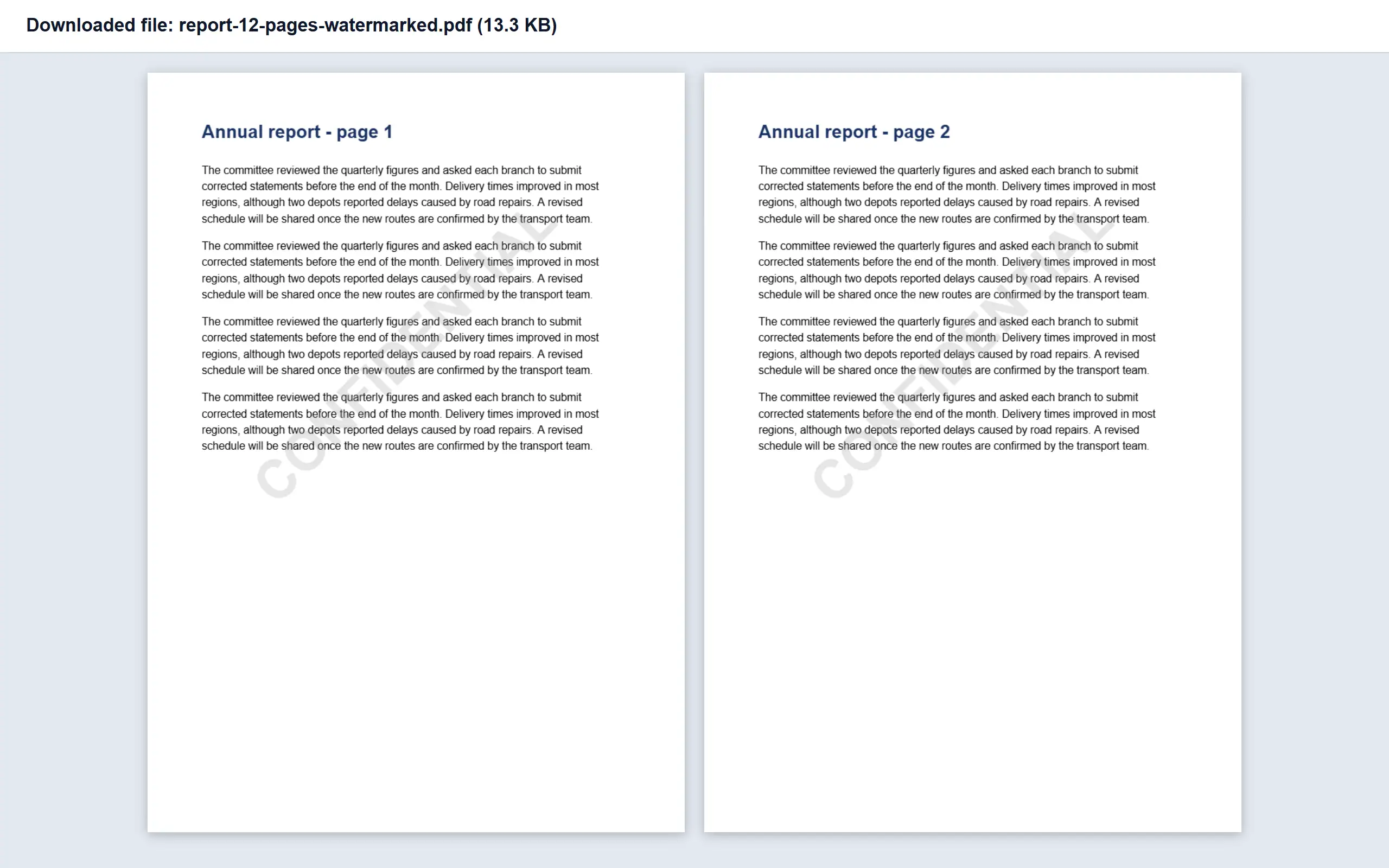
PDF Watermark places a line of text diagonally across the centre of every page, in large, light-grey letters. It is the fastest way to mark something DRAFT or CONFIDENTIAL. Image Watermark puts your logo or other picture in the centre of each page, drawn faintly so the content stays readable.
Overlay PDF places an entire PDF page on top of each page of your document, which lets you position things exactly, as with a letterhead or a form background. Header & Footer is the quietest option, adding a small line of text at the top or bottom, and it is better suited to titles and labels than to protection. Each is covered below.
DRAFT across every page
Your logo on a proposal
A full company letterhead
A small label on each page
A note on one page only
PDF Watermark
Image Watermark
Overlay PDF
Header & Footer
Add Text to PDF
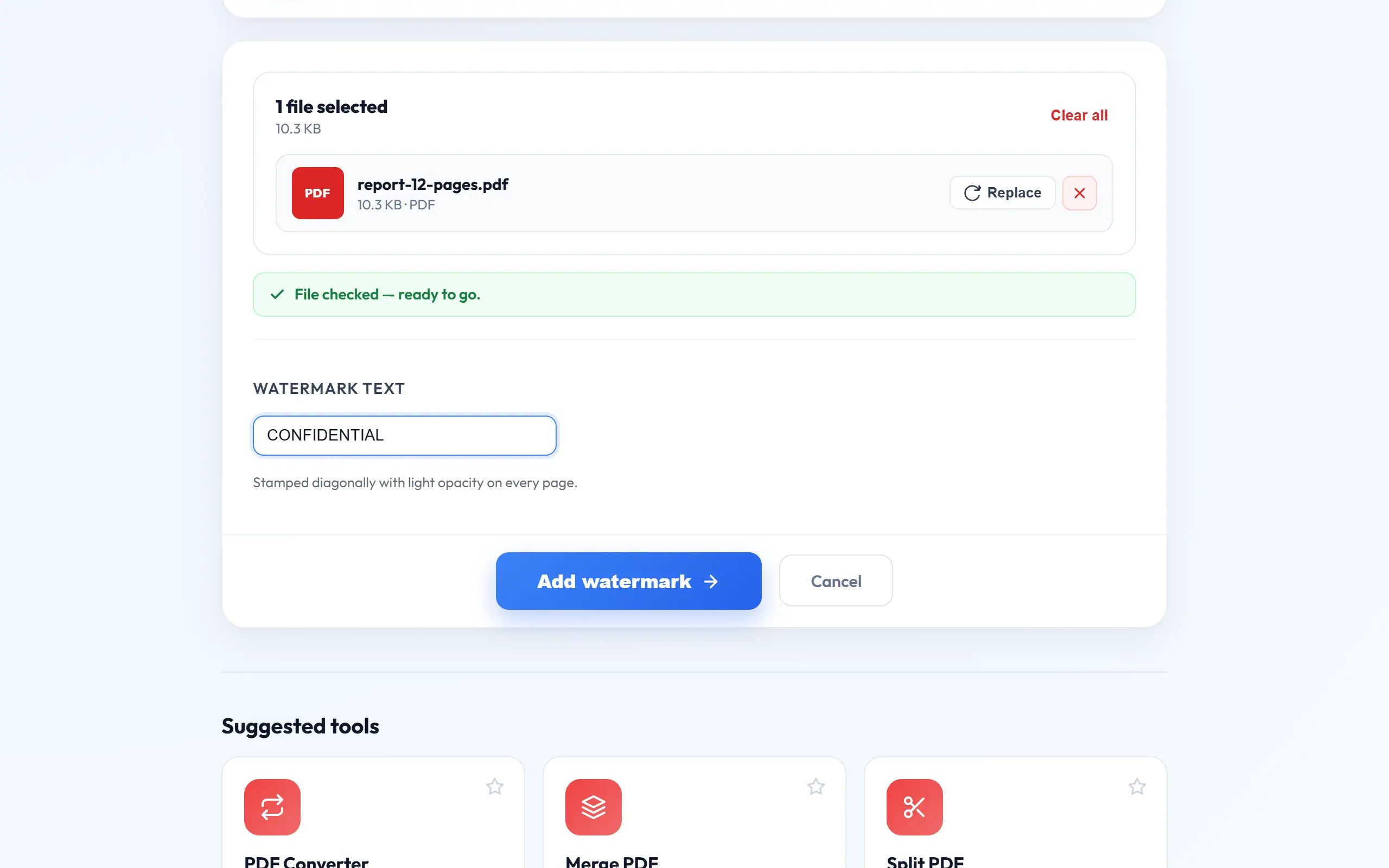
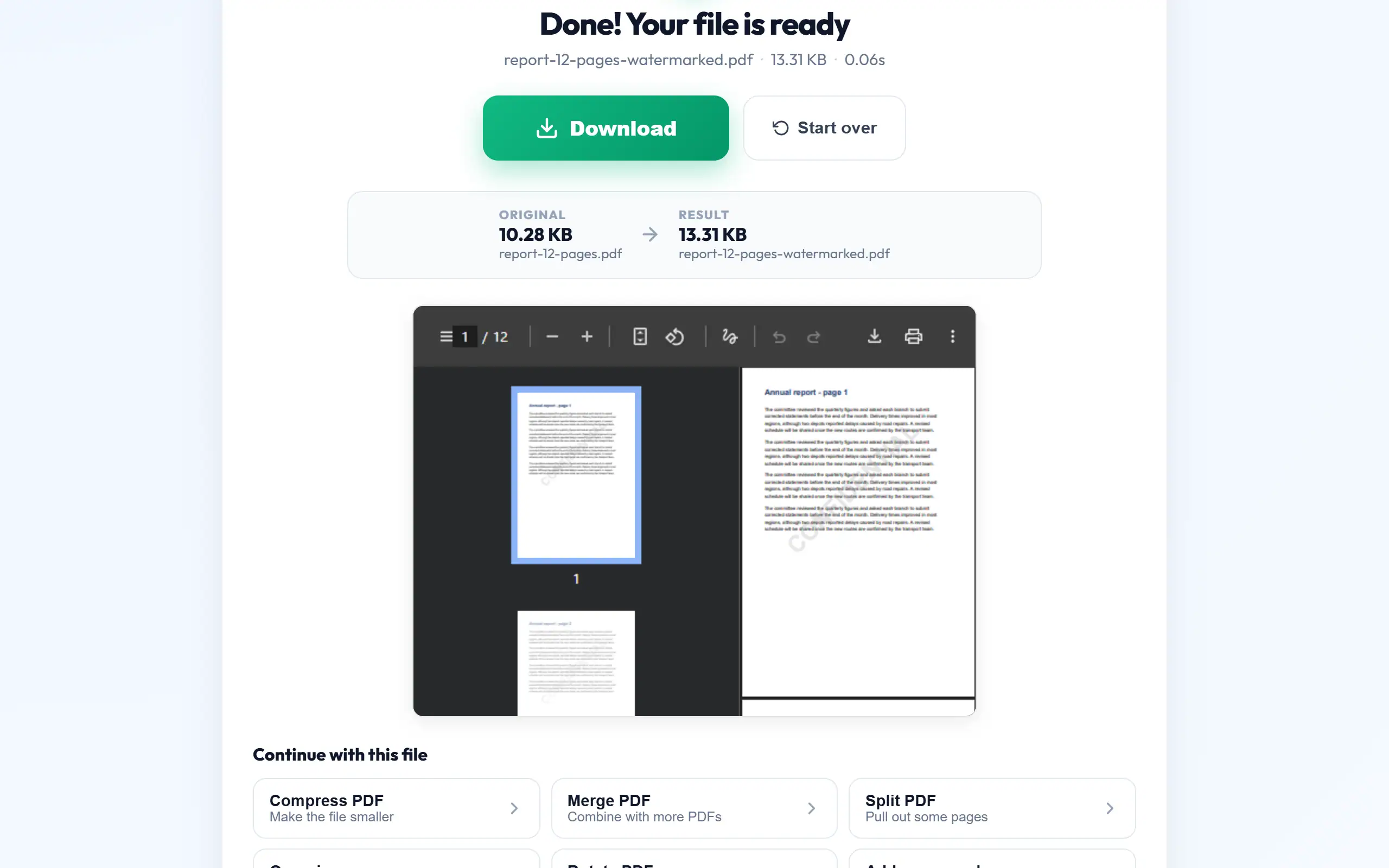
Add a text watermark in three steps
This works in English, Gujarati and Hindi, with text sized automatically to suit each page.
- Open PDF Watermark and upload your PDF.
- Type your text, keeping it short so that it stays large and readable.
- Press the button, download the result and check that the content underneath is still clear.
Protecting ID copies
This may be the most useful everyday reason to add a watermark. When you share a copy of your Aadhaar, PAN or passport, you lose control of what happens to it. Adding a line such as "Copy for HDFC home loan, 4 Nov 2026" makes the copy much harder to reuse for something else, and it records why you handed it over.
Keep the wording specific: the organisation, the purpose and the date. Check the result to make sure that names and numbers remain readable, because a reviewer who cannot read the details may reject the document. Before doing this for an official submission, consider whether the receiving organisation accepts marked copies, as some may ask for a clean scan. Many banks and offices are perfectly happy with it.
Using a logo
For the cleanest result, use a PNG with a transparent background. A JPG always has a solid background, so it shows up as a faint rectangle on the page. If you only have a JPG of your logo, a free background remover can make it transparent, or ask your designer for a PNG version.
Upload a reasonably large image, about 1000 pixels wide, because a very small logo becomes soft when it is scaled up. The tool scales the image to fit within half the page in each direction, keeping its proportions. Logos with thick, simple shapes work better than fine detail, which can almost vanish at low opacity, so it is worth printing a test page if the document will be printed.
Building a letterhead with Overlay PDF
If you want a proper letterhead on an existing document, design one page in Word, Canva or any design tool, at the same page size as your document, with your logo at the top and your address at the bottom. Leave the middle empty, and make sure the background is transparent, then export it as a PDF.
Upload your document first, followed by the letterhead. The first page of the overlay file is stamped over every page of your document, and it is stretched to fit, so matching the page size matters. If your letterhead hides the text, its background is not transparent, in which case go back and export it again. Check that your document's own margins leave room for the design.
What a watermark cannot do
A watermark discourages casual copying and misuse, but it is not security. Someone determined can retype the content, crop a page, or use editing software to remove the mark. A watermarked file can still be opened and forwarded by anyone, so if the content must stay private, also add a password using Protect PDF.
Likewise, it is not proof of authenticity. Anyone can add the word "ORIGINAL" to a page, so organisations that need to verify documents rely on digital signatures, or on QR codes linked to their own records. Treat a watermark as a label that sets out your intention, not as a lock.
Choosing good wording and order
Short, specific words work best. DRAFT and CONFIDENTIAL are clear, while long sentences have to shrink to fit diagonally, and they become hard to read. For client work, "Prepared for ABC Ltd" discourages forwarding without seeming rude. Date stamps show which version someone is looking at.
Do things in the right order: merge and finalise your document first, as a watermark is applied page by page to the file you upload. If you also want page numbers, a useful sequence is to merge first, then number the pages, watermark, and finally protect it with a password. Always keep an unmarked master copy, because taking a watermark off later is far harder than adding one.
Checking that a watermark works in practice
A watermark can look fine on a large screen and still fail in the real world, so test it in the places where the document will be used. Open the result on a phone, where everything is smaller, and confirm that you can read both the mark and the text beneath it. Then print one page, because light grey can fade to almost nothing on an office printer, or turn into a dark band on a poor photocopier.
Scanned documents need extra care, because the page is already a picture with its own background tone. A pale watermark may disappear against a grey scan, and that makes it pointless. If that happens, clean up the scan first, or use a shorter word, as larger letters are easier to see.
Think about how the mark interacts with important details as well. On an ID copy, the diagonal may cross your photo or number. It should not hide them, as a document that cannot be read may be rejected. If it does, try a shorter text, which is scaled differently, or put a small note in a corner using Add Text to PDF instead. The goal is a mark that is obvious to anyone trying to misuse the copy while leaving the content perfectly clear to the person who is meant to read it.
Frequently asked questions
Can I watermark only certain pages?
The tools mark every page. To mark only some, extract those pages, watermark them, and merge everything back in order.
Can I remove a watermark later?
Not with our tools, and generally not cleanly. Keep the original file, as it is the simplest way to get an unmarked copy.
Can a watermark be in Gujarati or Hindi?
Yes. PDF Watermark draws Gujarati and Hindi text with proper fonts, so letters and matras show correctly instead of empty boxes.
Does a watermark increase the file size?
Very little for text. A logo adds about the size of the image once, as it is reused on each page, so keep your logo file reasonably small.