How to Compare Two Documents and Find Every Change
Someone sends back a contract "with a few small edits", or a new price list arrives, or two people have been working on separate copies of the same report. Reading both versions side by side is slow and unreliable, because the eye skips over small changes, and those are often the ones that matter.
A comparison tool finds every difference in seconds. The trick is to choose the right one for your content and to prepare the text so that real changes are not buried under noise. This guide covers the four comparison tools on FilesSwift, and how to get a clear result from each.
Try it now:Text Compare →
Which comparison tool fits your content?
Text Compare is the general-purpose option: paste any two texts and see changes highlighted word by word or character by character, side by side or in a single column. It runs in your browser, so nothing is uploaded. Compare PDF does the same job for PDF files, by extracting their text for you.
Compare Lists is different, as it ignores order. It sorts items into three groups: in both lists, only in A and only in B. Use it for roll numbers, emails or product codes. JSON Compare understands JSON, so it ignores differences in spacing and shows only changes in the data.
Two contract drafts in Word
Two PDF versions of a report
This month's list vs last month's
Two API responses
Two config files
Text Compare (paste the text)
Compare PDF
Compare Lists
JSON Compare
Text Compare
Compare two texts in three steps
Use this for any text you can copy, including the contents of Word documents.
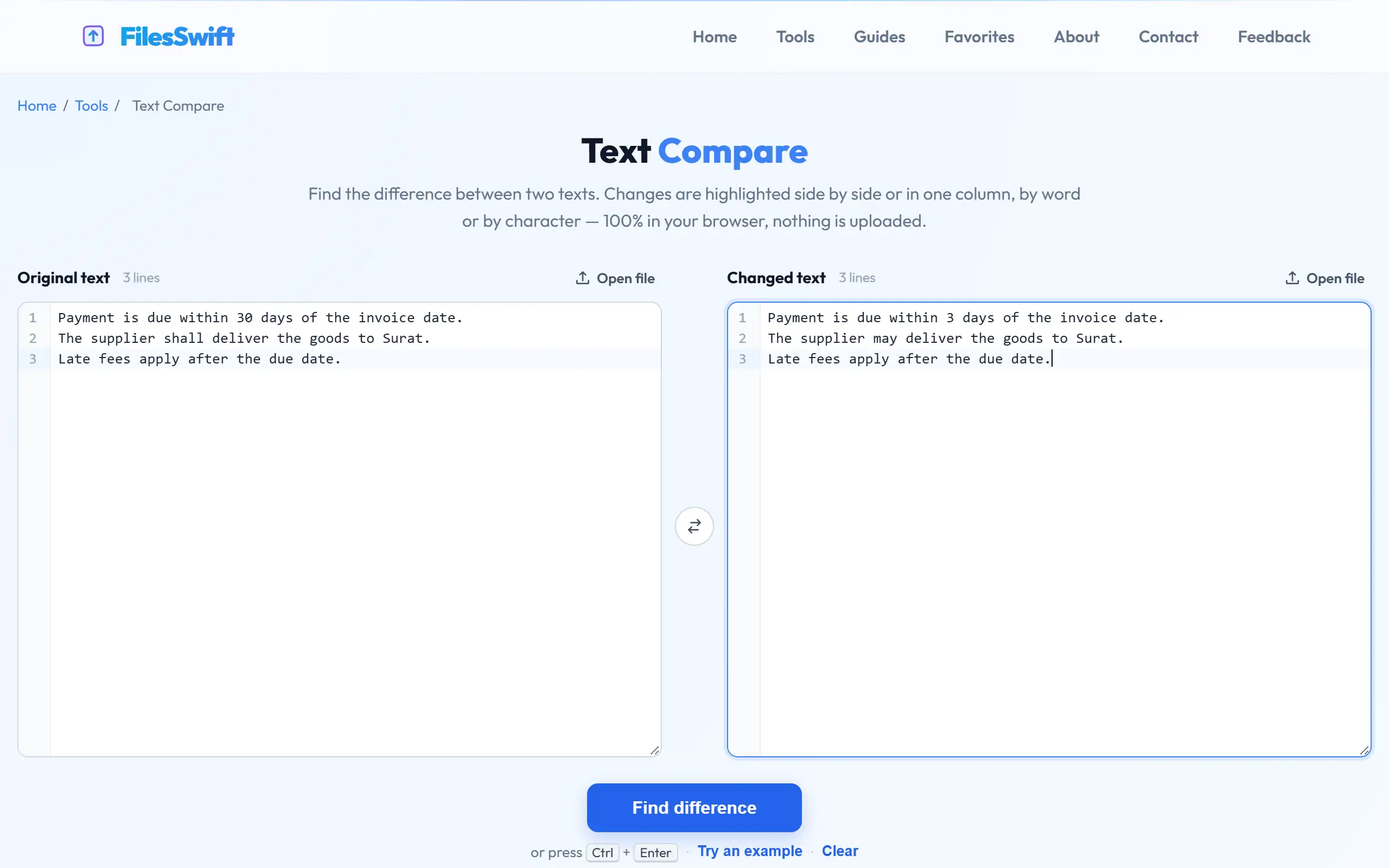
- Open Text Compare and paste the original text on the left and the new version on the right.
- Choose Split to see them side by side or Unified for a single column, then read through the highlights.
- Use the options to ignore case or whitespace if formatting differences are getting in the way.
Reading the result
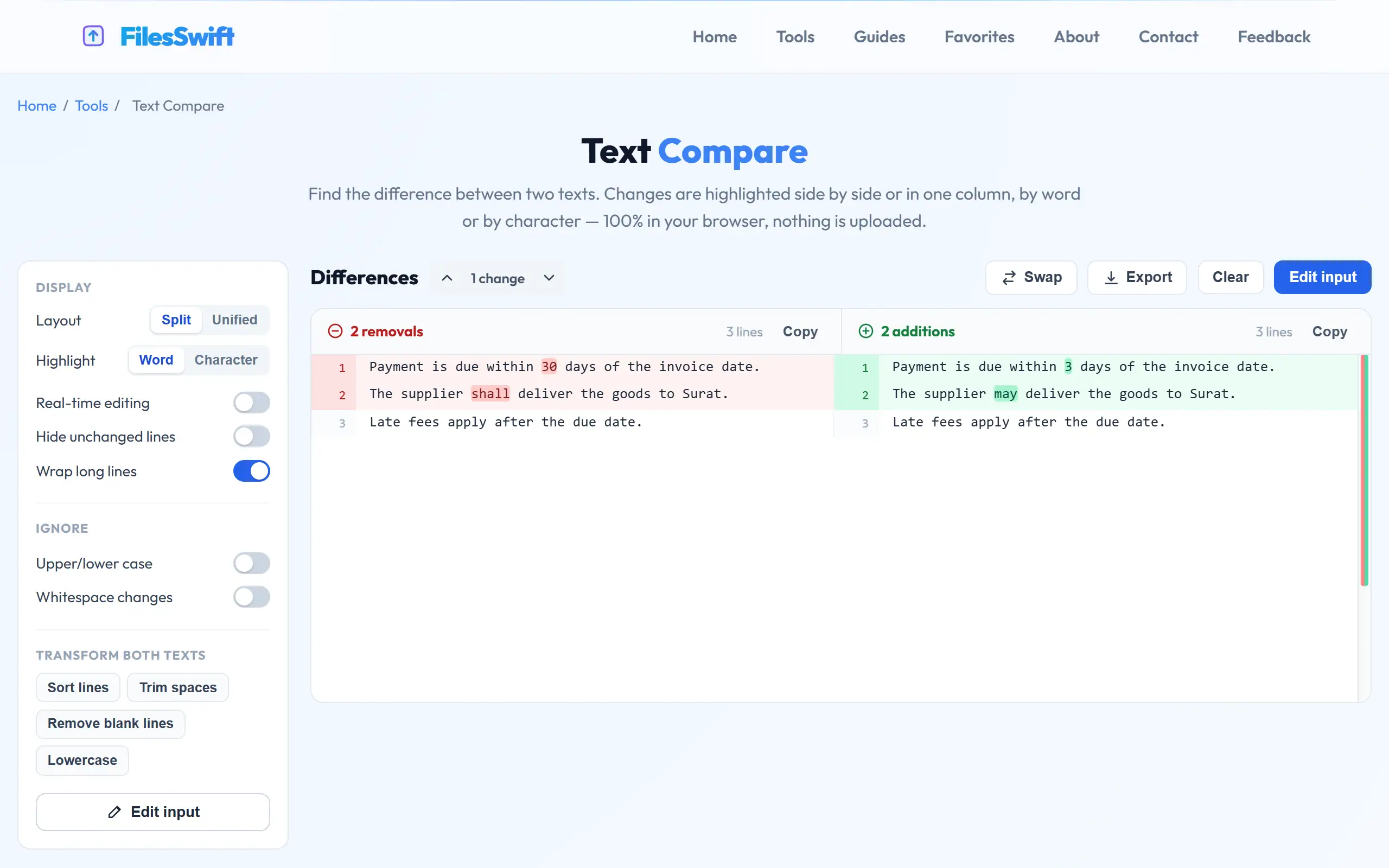
Removed text is shown in red and added text in green. A changed word usually appears as one removal plus one addition. Word-level highlighting is the best default for prose, since it tells you precisely which word changed in a long sentence. Character-level highlighting helps with codes and numbers, where a single digit can matter a great deal.
Focus on the small changes first: numbers, dates, names, and words like "shall", "may", "not" and "within". In a contract, replacing "30 days" with "3 days" or removing the word "not" changes the whole meaning while hardly altering the page. Take a slow look at each highlighted change, and do not assume that a change is harmless just because it is small.
Why everything can show as changed
Sometimes a comparison lights up almost every line, even though only a little has changed. The usual causes are line endings, extra spaces, and text that has wrapped differently. Copying from a PDF is a common culprit, since each visual line becomes a separate line of text, so a re-wrapped paragraph appears completely different.
To reduce this noise, switch on "ignore whitespace", and try the transforms that apply to both sides at once, such as trimming spaces and removing blank lines. If paragraphs are wrapped differently, paste them into a plain text editor and join them into single lines first. Once the formatting noise is gone, the real changes stand out clearly.
Comparing Word documents
Word has a useful built-in feature for this, under Review → Compare, which keeps tables and formatting in view and produces a marked-up document. It is often the best choice when both files are Word documents and you have the program to hand.
Text Compare is quicker when you just want to see the wording changes, when you are on a phone, or when one version is a Word file and the other a PDF. Copy all the text from each document and paste it into the two boxes. Bear in mind that it compares only words, so changes to fonts, colours, images or layout will not appear. If those matter, check them by eye.
Comparing PDFs, including scans
Compare PDF extracts the text from both files and shows differences line by line. It works well on digitally created PDFs. If the layout of a document has shifted, lines may be reported as changed even where the words are the same, so read those highlights with that in mind.
Scanned PDFs contain no text to compare, so you will get a message saying so. Run each one through OCR PDF first, which adds a text layer for English documents. OCR can misread characters, however, so some reported differences may be recognition errors rather than real changes. Check anything important against the page image. Files are deleted once the text has been extracted.
Comparing lists and data
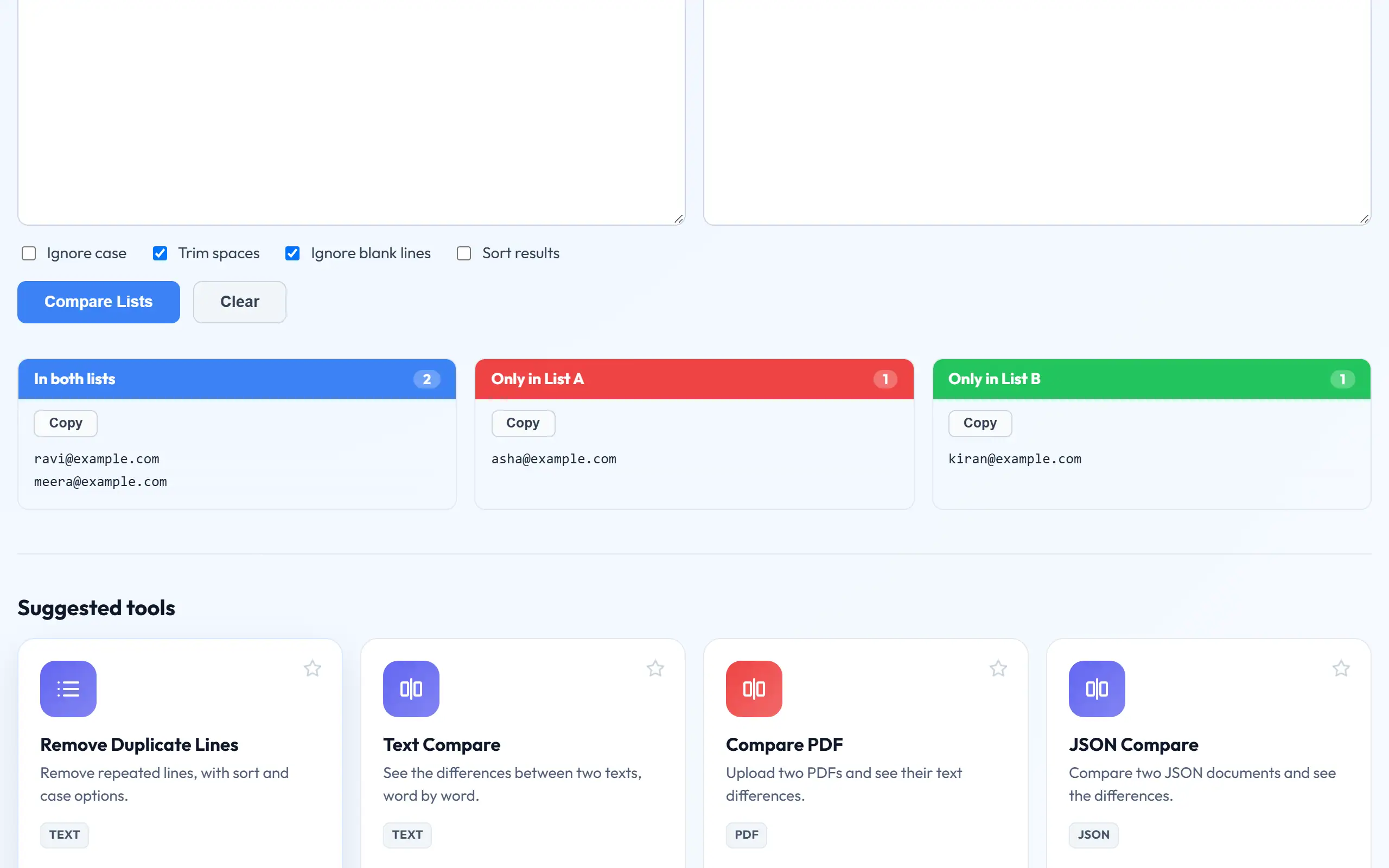
For lists, a text diff is the wrong tool, since a list in a different order shows up as a mass of changes. Compare Lists treats each list as a set. Paste the two columns, and you immediately see who is new, who has gone and who is on both. Options for ignoring case and trimming spaces help when data comes from different systems, as "Ravi " and "ravi" are probably the same person.
For JSON, sort the keys of both documents using JSON Sorter before comparing, because the same data with keys in another order will otherwise show as changed. For spreadsheets, save each sheet as CSV and sort both by the same column, then use Text Compare. For anything truly critical, follow up with a person reading the highlighted changes, as a tool can tell you what changed, but it cannot tell you whether a change is acceptable.
A review routine for contracts and agreements
When a revised agreement comes back, a simple routine keeps you from missing anything. First, make sure you are comparing the right files: your last sent version and the one they returned. Comparing against an older draft shows differences you have already accepted, and it hides nothing but wastes your attention. Copy the full text of each into Text Compare, turn on word-level highlighting and use the split view.
Go through the changes from top to bottom, and make a short list as you read: clause number, what changed and whether you accept it. Check numbers and dates first, then obligations, then anything that was removed, as deletions are easier to overlook than additions. Do not skip the definitions section, since changing one defined term there quietly changes every clause using it.
Finally, compare the final signed copy against the version you agreed. This last check is the one most people skip, and it is the one that catches a late change. A comparison only shows you the differences. It takes a person, and for anything serious a qualified lawyer, to decide what they mean.
Frequently asked questions
Is my text uploaded when I use Text Compare?
No. Text Compare, Compare Lists and JSON Compare run entirely in your browser. Compare PDF uploads the two files to extract their text and then deletes them.
Can it compare images or scanned pictures?
No. These tools compare text. A scanned PDF can be compared after running OCR PDF, but pictures, colours and layout are not compared.
Can I compare more than two documents?
Compare two at a time. For several versions, compare each one against the latest, or against the original, depending on what you need to know.
How can I keep a record of the differences?
Copy the highlighted output, or take a screenshot. For contracts, ask for a marked-up version as well, which gives you a record both sides can refer to.