How to Make a QR Code That Scans Every Time
QR codes are everywhere in India now, from a tea stall's UPI sticker to a restaurant menu or a wedding invitation. Making one takes seconds, and it needs no account. Making one that scans reliably, in dim light, printed small and from a little way off, takes a bit more care.
This guide explains the kinds of QR codes you can create, how to choose the right size and colours, how to add a logo safely, and how to test your code before you print 500 copies of it.
Try it now:QR Code Generator →
Create a QR code in three steps
QR Code Generator runs in your browser, so whatever you type stays on your device.
- Open QR Code Generator and choose the type, such as Website, Wi-Fi or UPI.
- Fill in the details, and add a logo or change the colours if you want to.
- Download a PNG, SVG or JPG, then test it with your phone's camera before using it.
What a QR code can hold
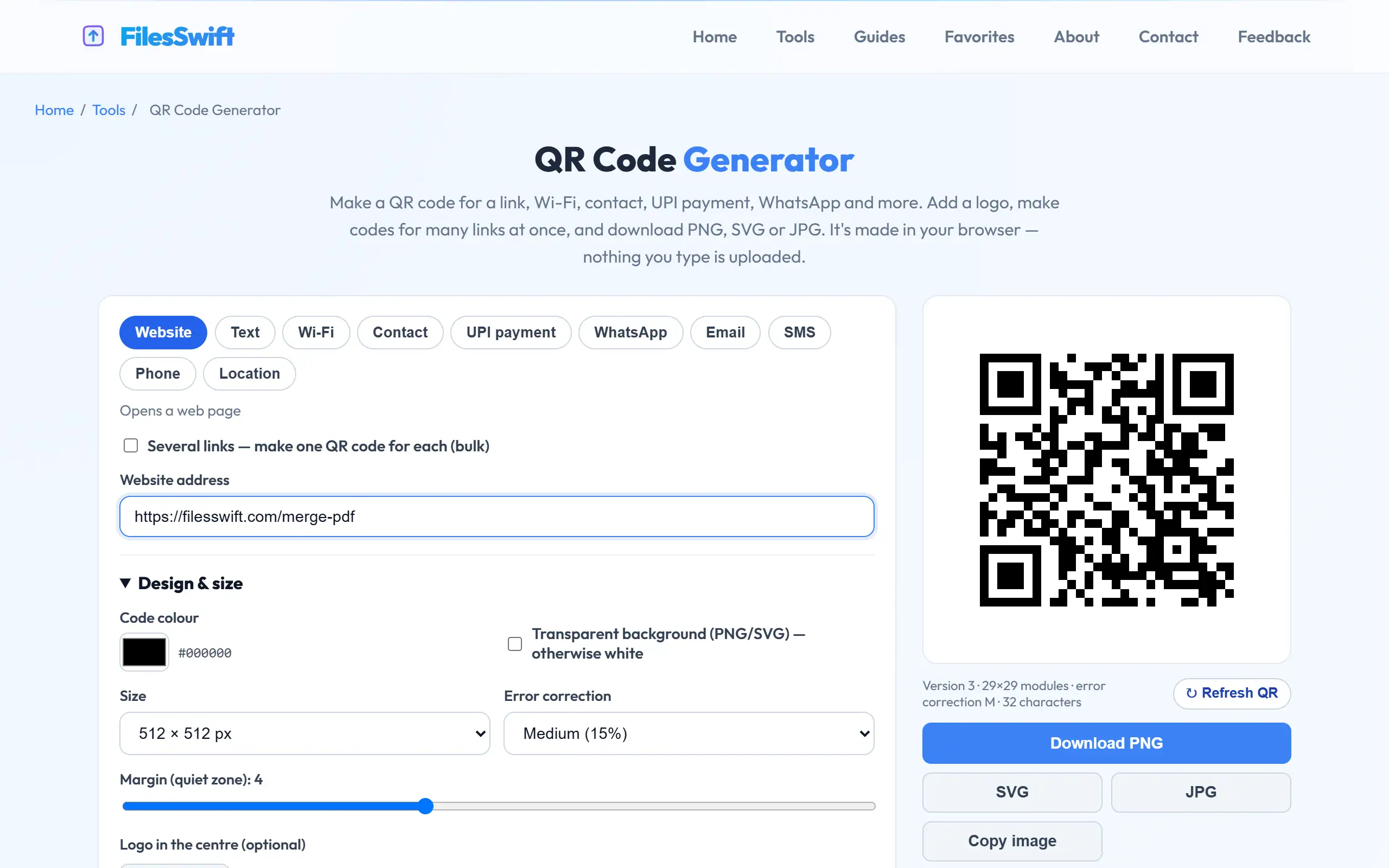
A QR code is simply text arranged as a pattern of squares. What happens when you scan it depends on the format of that text. A link opens in a browser. A Wi-Fi code contains the network name and password in a standard format, so a phone can offer to join directly. A contact card (vCard) offers to save a contact, and a UPI code opens a payment app with the details filled in.
Our generator supports ten types, including website links, plain text, Wi-Fi, vCard, UPI, WhatsApp chats, email, SMS, phone numbers and Google Maps locations. Each one writes the correct format, so you do not need to learn those formats yourself.
Website
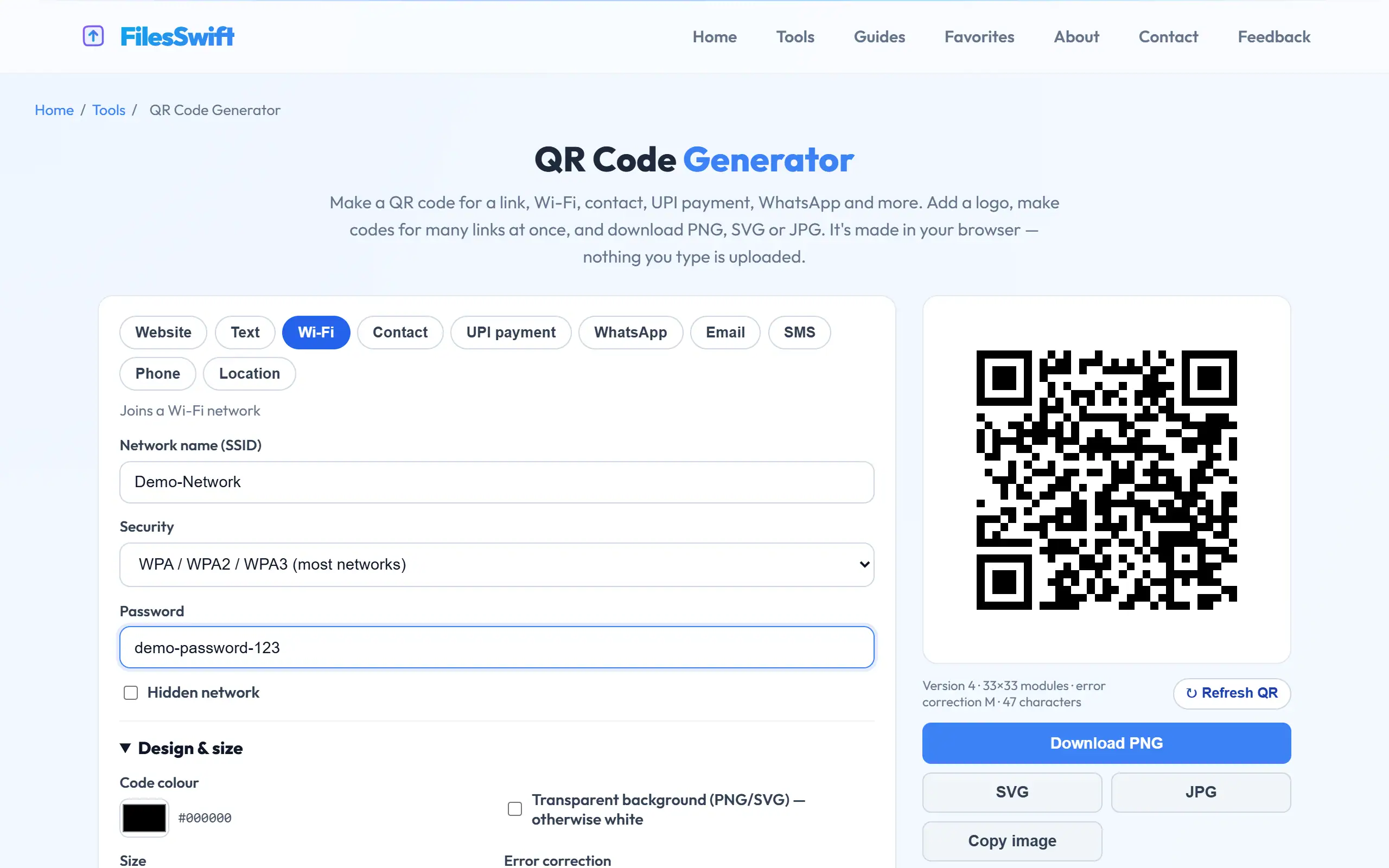
Wi-Fi
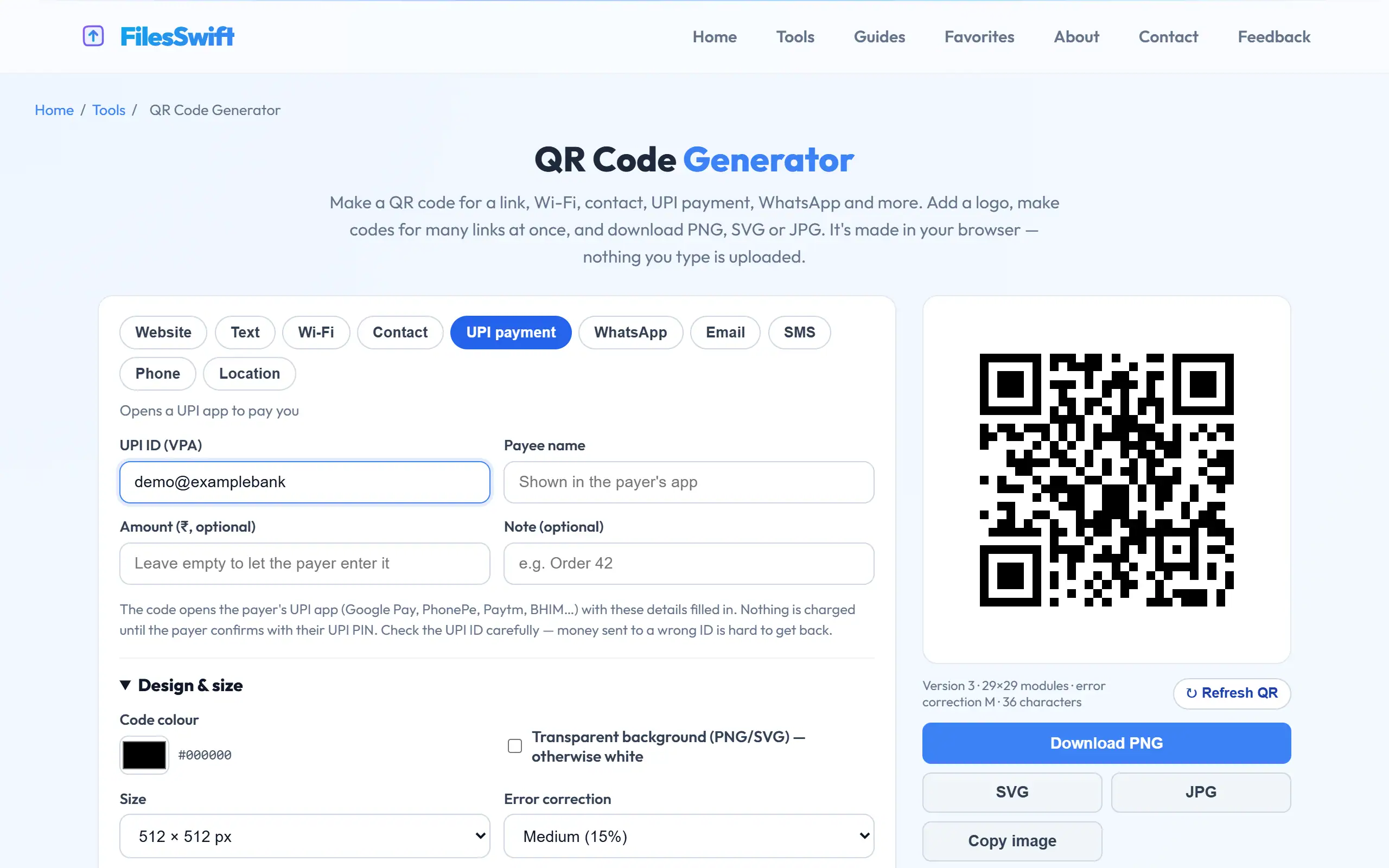
UPI
Phone
https://filesswift.com
WIFI:T:WPA;S:CafeGuest;P:chai1234;;
upi://pay?pa=shop@upi&pn=Shah%20Stores
tel:+919876543210
Keep the content short
The more text a code holds, the more squares it needs, and the smaller each square becomes at any given print size. A short link gives you a code with large, easy-to-read squares, whereas a long address full of tracking parameters creates a dense code that struggles on cheap phone cameras and in low light.
So remove unnecessary parameters from your link. If it is still long, use a short address on your own domain. A shorter code also tolerates more dirt and damage, a real advantage for anything stuck on a wall or a counter, where it will pick up scratches over time.
Print size and scanning distance
A common guideline is that the code should be at least one-tenth of the scanning distance. A code to be scanned from 30 cm should be about 3 cm wide, and a poster read from 2 metres should have a code of about 20 cm. A code on a visiting card can be around 2 cm, provided the content is short.
For anything printed large, download the SVG, as it stays sharp at any size. PNG works fine for screens and normal printing, as long as you do not stretch it. Do not resize a small PNG in Word or Canva to make it larger, because it may turn blurry at the edges of the squares, and scanners rely on those edges.
Colours and contrast
Scanners look for dark squares on a light background, so the safest code is black on white. You can use a dark colour such as navy or deep green on white, and it will generally scan well. Avoid pale colours like yellow or light grey, as they do not stand out against white.
Inverted codes, which are light on dark, fail on many phones and older scanners, so do not use them just for style. The white border around the code, known as the quiet zone, is also essential. Scanners use it to find the code, so do not let text or pictures run right up against the edges, and do not crop it away when you lay out your design.
Adding a logo safely
A logo works because QR codes contain error correction, spare data that lets scanners recover squares they cannot read. Covering the centre uses up some of that margin. Our generator raises the error correction level and limits the logo to a safe size of up to a quarter of the code's width, so it stays scannable on any normal version.
Even so, a logo reduces your safety margin, leaving less room for dirt, poor printing or a bad camera. Keep it simple, with a solid shape on a white background, and leave it out when the code will be small or printed on rough material. Always test the actual printed result, not just the version on your screen.
UPI payment codes
A UPI code holds your payment address (such as shop@upi), your name and, optionally, a fixed amount and a note. Scanning it opens the customer's UPI app with those details filled in, and the customer still has to confirm the payment with their own PIN. Money goes directly to the account behind that address, as this site is never involved in the payment.
Before you print, test it by sending a small amount, such as one rupee, from another phone, and check that the name displayed is correct. Note that banks and PSPs offer their own merchant QR codes with sound-box support and settlement reports, and those are usually better for a busy shop. A code like this one suits personal use or a small seller.
For safety, protect printed payment codes against tampering, since swapping a sticker is a known fraud. Check your stickers regularly. If you are paying, always read the name your app shows before confirming, and never enter your UPI PIN to receive money.
Static codes and why they do not expire
The codes you create here are static, meaning that the information is stored in the pattern itself, with no service in between. They never expire, and they keep working even if FilesSwift disappears, because there is nothing to connect to. They also carry no tracking, so neither you nor we can see who scanned them.
The drawback is that you cannot change what a static code points to after printing. To protect yourself, point the code to an address you control, such as a page on your own site, so you can change where that page leads later. "Dynamic" QR services offer this with scan counts, but they add a redirect through their servers, and your code will stop working if the subscription ends.
Test before you print
Run through a short checklist each time. Scan with at least two different phones, one of them older or cheaper, as these often struggle more. Try from the expected distance and in the lighting where it will actually be used. Check that the link opens the right page, on mobile data rather than your office Wi-Fi. Then do a test print on the real material, because glossy and textured surfaces may affect scanning.
Making many codes at once is possible as well. In bulk mode, paste a list of links, and you can download one code per link in a ZIP file, along with a list of which file holds which link. That is useful for product labels, event passes and classroom materials.
Frequently asked questions
Do I need to pay or sign up to make a QR code?
No. The generator is free, needs no account, and the codes do not expire, as they contain the information directly with no service in between.
Can I see how many people scanned my code?
Not with a static code, because scans do not contact any server. To count visits, point the code to a page on your own site and check your analytics.
Can one QR code open several links?
A code holds one piece of content. To offer several links, point it to a single page that lists them, which you can update later without reprinting.
Why won't my code scan?
Usually the cause is low contrast, a missing white border, a code printed too small for its content, or a logo that is too large. Try black on white, and make it bigger.